
Skip to content
View in the app

A better way to browse. Learn more.

LCPDFR.com

A full-screen app on your home screen with push notifications, badges and more.

To install this app on iOS and iPadOS
  1. Tap the Share icon in Safari
  2. Scroll the menu and tap Add to Home Screen.
  3. Tap Add in the top-right corner.
To install this app on Android
  1. Tap the 3-dot menu (⋮) in the top-right corner of the browser.
  2. Tap Add to Home screen or Install app.
  3. Confirm by tapping Install.

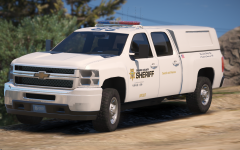
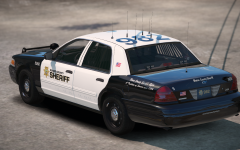
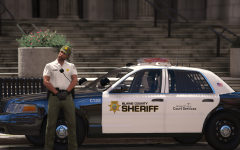
Search and Rescue

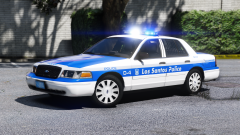
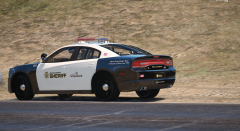
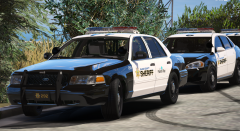
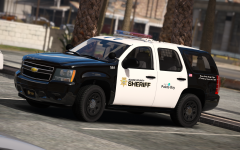
Not done yet, still have to add a few things but thats basically it.

Ignore the lights being on even when the car is off, I already updated and dont have ELS so it just turned on those extras.

Base by @Him1250


594a7cb780a04_GrandTheftAutoV06_21.2017-00_17_52_14.thumb.png.44149099b22d4341b4baf202d959908d.png


594a7cbb8797c_GrandTheftAutoV06_21.2017-00_18_25_15.thumb.png.128cee17a7f722fd042abd68b79408b7.png


594a7cbf76bcb_GrandTheftAutoV06_21_2017-00_20_18_19.thumb.png.bb8524951f12a8b3fd32456c6b2ac90f.png

Credit

t0y, Him1250

Copyright

© t0y

From the album:

t0y's Projects

· 127 images

Account

Navigation

Search

Search

Configure browser push notifications

Chrome (Android)
  1. Tap the lock icon next to the address bar.
  2. Tap Permissions → Notifications.
  3. Adjust your preference.
Chrome (Desktop)
  1. Click the padlock icon in the address bar.
  2. Select Site settings.
  3. Find Notifications and adjust your preference.