





"Where I am Today"

By DukSezQuak
- 725 views
- View DukSezQuak's images
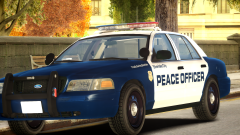
Officer 2 Martin Jackson of the Silverlake Police joined in May of 2003 and has been one of Silverlakes Finest since then. As a part of our Archives Sharing program, he chose to share his story and a couple of pictures of his career.
Today, OFC 2 Jackson is now one of four supervisors for the Central Silverlake division, and is assigned to the headquarters building.
"Going from being a simple officer to a supervisor was a massive step for me to take, but I'm always up for a challenge" he says.
Since his first shift, Jackson now has several accommodations, and also has the medal of bravery, which he attained in March 2009 due to his efforts to save an individual in a vehicle that was involved in a collision on the peak of Silverlake Mountain. Jackson went to extraordinary efforts to save the individual, despite the great risk of the vehicle potentially tipping and falling off of the peak.
"Joining the Silverlake Police was the best decision I have made. I would never go back." Officer 2 Jackson is the prime example of what all Silverlake Officers should strive to be, and we look forward to having Officer 2 Jackson a part of our team for years to come.
Officer 2 Jackson is also pictured in this recent image taken by a photographer: https://www.lcpdfr.c...verlake-police/
Recommended Comments
Join the conversation
You can post now and register later. If you have an account, sign in now to post with your account.