


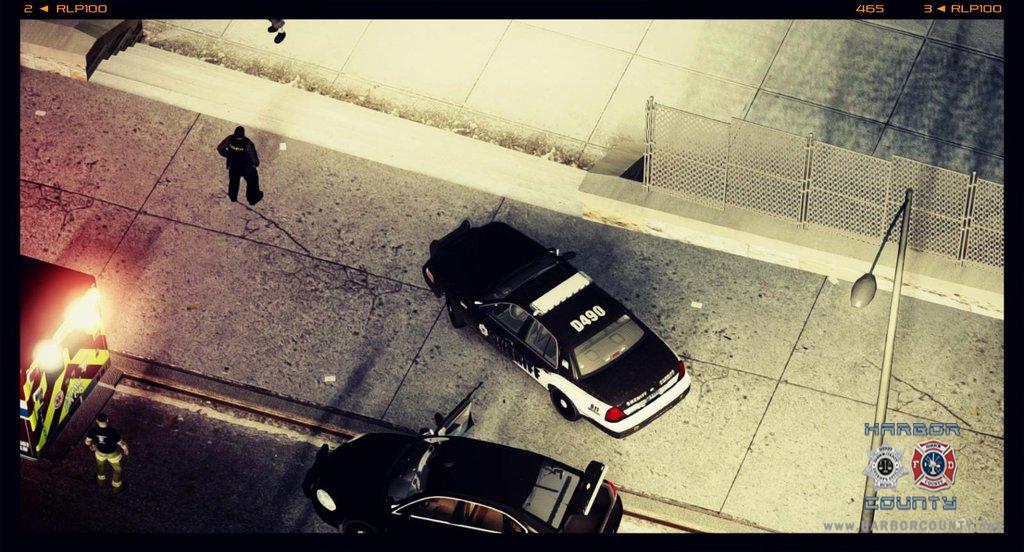
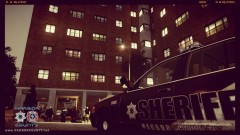
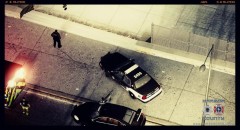
Eagle 1 from the HCSO - ''Eyes In the Sky''.
.thumb.png.ecf43c03aae99a7abd3f5a0d930d62f9.png)
- 550 views
- View InnermostZero's images
Date/Time: 01:34 pm June 26th 2013.
----------
Nature: Gang Related Stabbing.
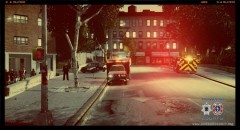
On Scene Personnel: Eagle 1, Medic 12, Medic 8, Unit 2T28 and 2C26.
Location: District 2, Algonquin, Vespucci Gardens, Apartment block 3.
----------
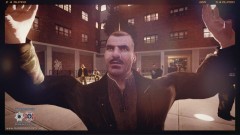
Incident Overview: Eagle 1 arrived minutes after the call was dispatched to the 2 ambulances and the 2 HCSO deputies. The aviation unit consisted of the pilot and co-pilot and they main function of this call was to located and notify the ground units on any possible suspects maybe fleeing the scene.This initial shot was from the HCSO PR department riding along with Eagle 1 for the day and shows how fast the deputy from this Crown Victoria got out of his vehicle to help the males that were victim to stabbing leaving the engine ,lights, sirens on as well as the driver door swung swiftly open. Eagle 1 later noticed a 50 y/o male that was acting suspiciously ,looking up at the helicopter along with looking over his shoulder numerous times after observing this behavior the co-pilot took the chance to point out this male along with being able to point out the description .Upon the arrival of the deputies they noticed blood dripping from his hands and within seconds gave the correct verbal commands to execute a flawless arrest.
Recommended Comments
Join the conversation
You can post now and register later. If you have an account, sign in now to post with your account.