Skip to content
View in the app

A better way to browse. Learn more.

LCPDFR.com

A full-screen app on your home screen with push notifications, badges and more.

To install this app on iOS and iPadOS
  1. Tap the Share icon in Safari
  2. Scroll the menu and tap Add to Home Screen.
  3. Tap Add in the top-right corner.
To install this app on Android
  1. Tap the 3-dot menu (⋮) in the top-right corner of the browser.
  2. Tap Add to Home screen or Install app.
  3. Confirm by tapping Install.
The latest updated version of RAGE Plugin Hook, required to play LSPDFR, can be found inside the LSPDFR download. It is not currently available on the RAGE Plugin Hook website.

How to Change Patrol Type
Featured Replies

  • Author

Ugh!  Disregard, I found out how.  This is the 2nd post where I found out how to fix it the day after posting.  I try to change this and that and nothing is working then after I post, one more thing pops into my head to try and what do you know, it worked.  Well, anyway.


For those who might not know, go into the PD and go to Locker and select whatever agency you want and select Confirm to save. 


For those who are saying, We'll gee JB that was pretty obvious, how did you not know that? Are you stupid?  Are you a moron?  Are you from Sandy Shores? 🤔Maybe,  Well I sometimes go into the PD to go on and off duty, the other half of the time I do force duty.  I even forgot what the other 2 options are(Locker and Garage).  I always selected a uniform through EUP because I like those a bit more than LSPDFRs.  So I wouldn't go in the locker.  I didn't go into the Garage because I would just spawn my vehicles because my add ons weren't in the garage.  Until I found just recently how to put add ons in the garage.  So I guess I'll be using the garage more.  So, I'm good here for now. 

  • Author

Go to your main GTAV folder then go to the lspdfr folder>data folder and select duty_selection.  I edit it in notepad.  In between the vehicle selections tags you can add the new lines for your add ons from the top.  I think the lines from top to bottom is how it will appear when you go in the garage (first line will be the first selection in the garage).  I didn't do that though, I might go back in and adjust it but I'm fine for now.  You might find the agency you want and then copy that line and paste it as a new line and just change the Description Name and the Full Name to however you want to describe the vehicle and that will show in the garage.  Don't change the agency ref, just put the right vehicle for that agency. 

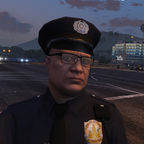
Desktop Screenshot 2019.09.03 - 12.46.59.83.png

Join the conversation

You can post now and register later. If you have an account, sign in now to post with your account.

Guest
Reply to this topic...

Recently Browsing 0

  • No registered users viewing this page.

Account

Navigation

Search

Search

Configure browser push notifications

Chrome (Android)
  1. Tap the lock icon next to the address bar.
  2. Tap Permissions → Notifications.
  3. Adjust your preference.
Chrome (Desktop)
  1. Click the padlock icon in the address bar.
  2. Select Site settings.
  3. Find Notifications and adjust your preference.