Skip to content
View in the app

A better way to browse. Learn more.

LCPDFR.com

A full-screen app on your home screen with push notifications, badges and more.

To install this app on iOS and iPadOS
  1. Tap the Share icon in Safari
  2. Scroll the menu and tap Add to Home Screen.
  3. Tap Add in the top-right corner.
To install this app on Android
  1. Tap the 3-dot menu (⋮) in the top-right corner of the browser.
  2. Tap Add to Home screen or Install app.
  3. Confirm by tapping Install.

Our Response to Channel 7 News

Featured Replies

  • Popular Post

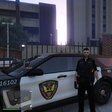
Channel 7 News in Australia ran a story regarding LSPDFR yesterday, misrepresenting that LSPDFR and other modifications are used as a simulation for killing police officers.  This has since been picked up by other media outlets, as well as the gaming press.  Obviously, this simply isn't the case, and you can read our statement regarding this matter below.


Quote


Over the past couple of days, we've noticed a flurry of activity on LSPDFR, seemingly sparked by some media coverage in Australia.  The initial story, run by Channel 7 News was that our modification for GTA V, LSPD First Response, was being used by "underground geeks" to simulate the killing of Australian police officers.  This is simply a gross misrepresentation of what we, as software developers, and our users, as passionate members of a diverse and overwhelmingly pro-law enforcement community, stand for.  In reality, LSPDFR is a mode which allows you to play as a police officer within the game - players can make arrests, pull over speeding vehicles and respond to emergency situations.


Indeed,  if there's any story here, it's the story of how LSPDFR has actually empowered law enforcement, by playing host to tens of thousands of young people, from across the world, who would rather play as the good guys than the bad guys.


"You tell me exactly what you want, and I will very carefully explain to you why it cannot be."

  • The topic was unpinned
Guest
This topic is now closed to further replies.

Recently Browsing 0

  • No registered users viewing this page.

Account

Navigation

Search

Search

Configure browser push notifications

Chrome (Android)
  1. Tap the lock icon next to the address bar.
  2. Tap Permissions → Notifications.
  3. Adjust your preference.
Chrome (Desktop)
  1. Click the padlock icon in the address bar.
  2. Select Site settings.
  3. Find Notifications and adjust your preference.