Skip to content
View in the app

A better way to browse. Learn more.

LCPDFR.com

A full-screen app on your home screen with push notifications, badges and more.

To install this app on iOS and iPadOS
  1. Tap the Share icon in Safari
  2. Scroll the menu and tap Add to Home Screen.
  3. Tap Add in the top-right corner.
To install this app on Android
  1. Tap the 3-dot menu (⋮) in the top-right corner of the browser.
  2. Tap Add to Home screen or Install app.
  3. Confirm by tapping Install.
Due to overzealous filtering on Microsoft’s side, some emails to Outlook and Hotmail addresses may not be delivered. If you’re affected, please use a different email address or try again later.

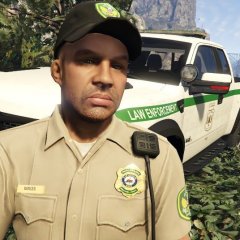
Ultra Settings/1080p/SweetFx/60 FPS

Featured Replies

Loving the gameplay and solid frame rates for sure. Optimization is perfect and gives solid FPS on maximum settings.


aJ43MkM.jpg

G86yEnb.jpg

WMMUZgu.jpg

3RJNxxR.jpg

LkwCuoK.jpg

oxHV8gY.jpg

ogKem7t.jpg

acLl5in.jpg

6IccFTJ.jpg

XM5Uxz7.jpg


Join the conversation

You can post now and register later. If you have an account, sign in now to post with your account.

Guest
Reply to this topic...

Recently Browsing 0

  • No registered users viewing this page.

Account

Navigation

Search

Search

Configure browser push notifications

Chrome (Android)
  1. Tap the lock icon next to the address bar.
  2. Tap Permissions → Notifications.
  3. Adjust your preference.
Chrome (Desktop)
  1. Click the padlock icon in the address bar.
  2. Select Site settings.
  3. Find Notifications and adjust your preference.