Skip to content
View in the app

A better way to browse. Learn more.

LCPDFR.com

A full-screen app on your home screen with push notifications, badges and more.
To install this app on iOS and iPadOS
  1. Tap the Share icon in Safari
  2. Scroll the menu and tap Add to Home Screen.
  3. Tap Add in the top-right corner.
To install this app on Android
  1. Tap the 3-dot menu (⋮) in the top-right corner of the browser.
  2. Tap Add to Home screen or Install app.
  3. Confirm by tapping Install.
The latest updated version of RAGE Plugin Hook, required to play LSPDFR, can be found inside the LSPDFR download. It is not currently available on the RAGE Plugin Hook website.

Police Vehicle Not Replacing

Featured Replies

3 hours ago, HeLl6RoUnD66 said:

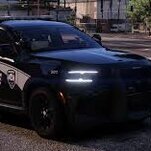
I replaced the vehicle, yet it won't work?

Could contain: land vehicle, vehicle, sky, outdoor, building, car, screenshot, wheel, red

Hi 🙂

Could you explain further? Like what vehicle it was, is it supposed to be ELS or not. If it's do you have ELS installed.

Just saying "I replaced the vehicle, yet it won't work?"

Doesn't really help us decipher what's going on

Thank you

Modding without a clue — results may vary | Please quote me when replying I like notifications

Howdy! If your replacement pack was compatible with ELS it would have a "police.xml" file that would go into the ELS config. I'd recommend checking to see if it was a ELS vehicle and see if you're missing the config or just to try a different pack. If you need any help feel free to just shoot me a message and link me the pack you used and I'll make up a simple video tutorial for you


Safe Patrols 🙂

LSPDFR OFFICER

This is a support topic.
Only reply here to offer help or assistance to HeLl6RoUnD66. Off-topic or "me too" replies will be removed.

Need support yourself? Make a new topic instead.

Join the conversation

You can post now and register later. If you have an account, sign in now to post with your account.

Guest
Reply to this topic...

Recently Browsing 0

  • No registered users viewing this page.

Account

Navigation

Search

Search

Configure browser push notifications

Chrome (Android)
  1. Tap the lock icon next to the address bar.
  2. Tap Permissions → Notifications.
  3. Adjust your preference.
Chrome (Desktop)
  1. Click the padlock icon in the address bar.
  2. Select Site settings.
  3. Find Notifications and adjust your preference.