Skip to content
View in the app

A better way to browse. Learn more.

LCPDFR.com

A full-screen app on your home screen with push notifications, badges and more.

To install this app on iOS and iPadOS
  1. Tap the Share icon in Safari
  2. Scroll the menu and tap Add to Home Screen.
  3. Tap Add in the top-right corner.
To install this app on Android
  1. Tap the 3-dot menu (⋮) in the top-right corner of the browser.
  2. Tap Add to Home screen or Install app.
  3. Confirm by tapping Install.

LSPDFR-Themed Loading Screens 1.0.0

(5 reviews)

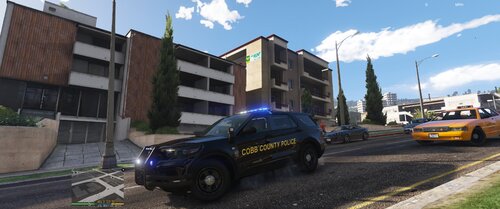
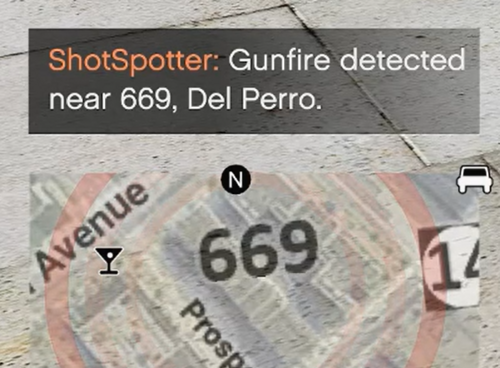
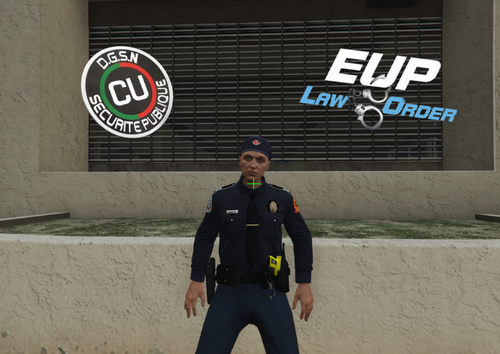
3 Screenshots

LSPDFR
LOADING SCREENS

Introduction

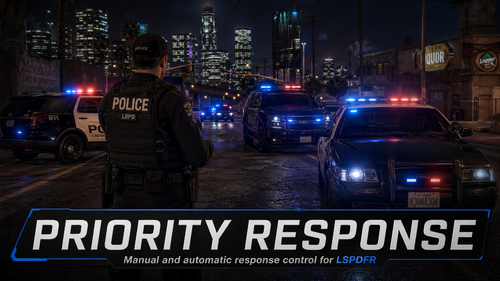
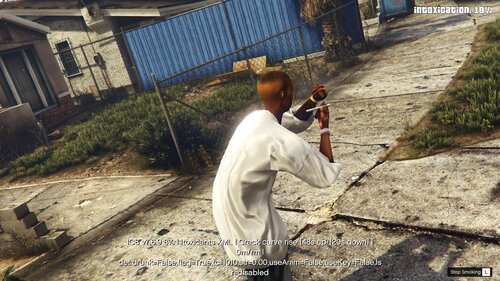
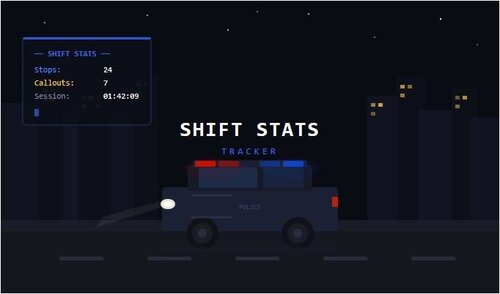
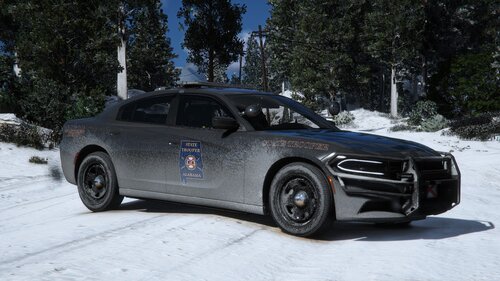
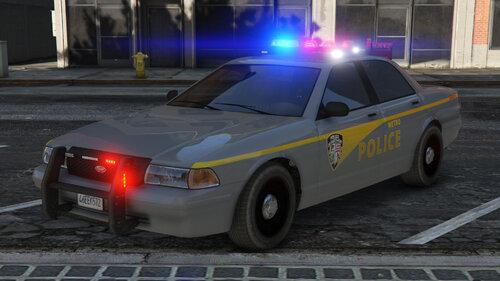
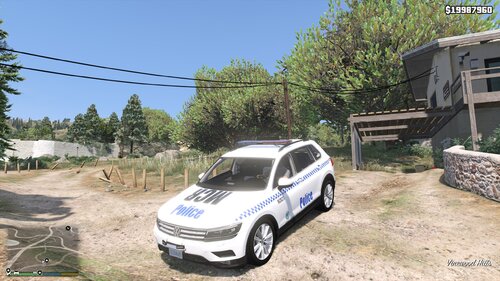
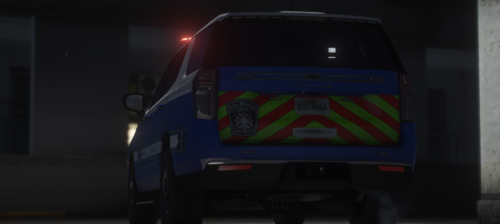
Hey everyone! This modification will simply change the loading screen when you start up GTA V. Each thumbnail was not made by me, but credits for each one is in the Installation Guide document. Thank you for downloading, and remember to leave a review / comment!

Installation

1. Navigate to update/update.rpf/x64/data/cdimages/

2. Replace "scaleform_frontend" with the one provided.

3. Launch the game and enjoy!

Credits

Lundy ---------------------- Photo #1

pHagah ------------------- Photo #2

Jordan Devlin ----------- Photo #3

Officer Square: --------- Creator

User Feedback

Recommended Comments

FRGamer

Members

These usually never work for me for some reason, but I'll backup my files & give it a shot, looks cool. :)

OfficerSquare

Members Author

These usually never work for me for some reason, but I'll backup my files & give it a shot, looks cool. :)

Sad to hear.. I hope it works this time!

Cool in game shots, no hookers ?

Let's try to keep it professional, officer! Haha.

R.MontoyaGPD

Members

(edited)

Hi, this doesn't seem to work for me, even when I put it into my folder as exactly as you told me, I did though put it through my mods folder mods/update etc to cdiimages, does it have to be through the main game directory cdimages or can it work through the mods cdimages?


Edited by R.MontoyaGPD

Create an account or sign in to comment

Account

Navigation

Search

Search

Configure browser push notifications

Chrome (Android)
  1. Tap the lock icon next to the address bar.
  2. Tap Permissions → Notifications.
  3. Adjust your preference.
Chrome (Desktop)
  1. Click the padlock icon in the address bar.
  2. Select Site settings.
  3. Find Notifications and adjust your preference.