


My first ever released Vehicle texture for LSPDFR!
Included Textures:
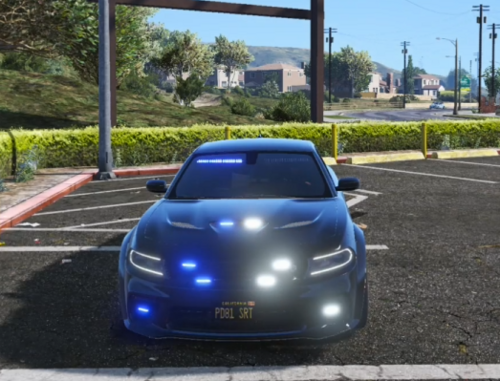
Police Cruiser
Police Buffalo
Police Interceptor
Readme is Included in the .zip
These will replace the stock LSPD City cars
No Spawning has been changed, they will spawn in the city
Sorry, but I don't know how to do that
Hope you guys enjoy
A Massachusetts Ped texture will be coming soon :D
OfficerL6
- Snake Eyes and gamerboy2200
-
 1
1
-
 1
1
![[ELS-Hybrid | DLC/Addon ] Low-Profile z71 Tahoes](http://s3-screenshots.int-cdn.lcpdfrusercontent.com/monthly_2026_05/25_1(1).thumb.png.7bdf0066d86afe565fac5e2684baa3e8.png)
![[ELS][REPLACE] 2020 Skoda Octavia Městská policie Praha (New design)](http://s3-screenshots.int-cdn.lcpdfrusercontent.com/resize/500/-/monthly_2026_05/20260514222354_1.thumb.jpg.dedd1cd5cdf14716666af6abfa71508d.jpg)

.thumb.png.a0f80464539c2dd42ee2519c1bda91f2.png)

![Generic Whelen 2023 F150 B/B [FiveM & Single Player]](http://s3-screenshots.int-cdn.lcpdfrusercontent.com/resize/500/-/monthly_2026_05/enb2026_5_13_15_23_48_06.thumb.png.ecbdfb941234f496e3fd959033f602d4.png)






Recommended Comments
Create an account or sign in to comment