


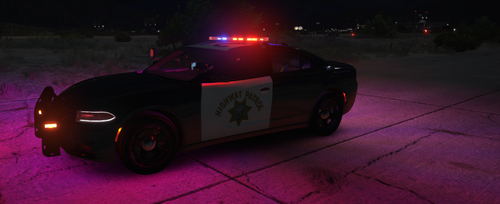
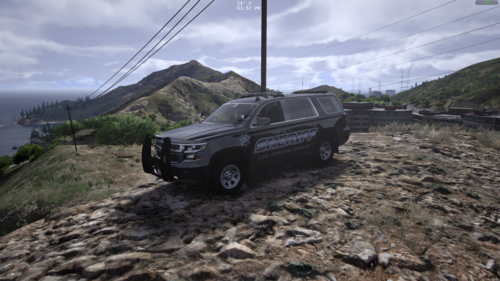
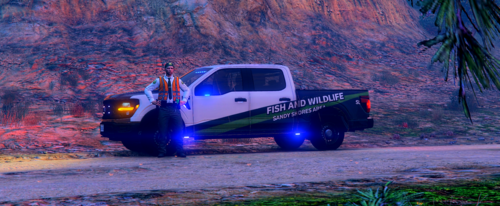
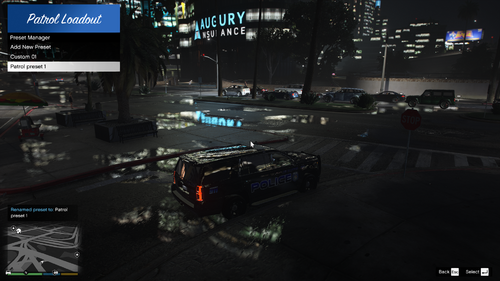
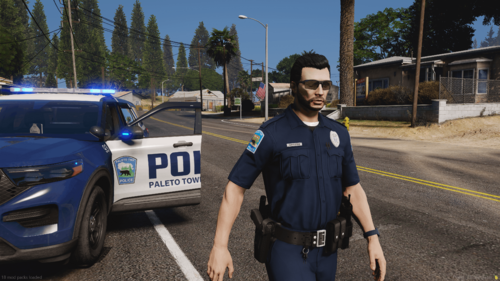
Alright, I haven't made an F.I.A. P.D. skin yet, so I decided to go ahead and make some
for you guys! I was gonna turn it into a full pack but I just decided to just make 2 of them for
the tahoe and cvpi. Anyways let me know what you guys think!
ENJOY!
LINKS TO VEHICLES:
Tahoe: (https://www.lcpdfr.com/files/file/6573-els-fictional-chevrolet-tahoe/)
CVPI: (https://www.lcpdfr.com/files/file/6595-liberty-county-sheriffs-office-crown-vic/)
DO NOT REDISTRIBUTE!
Textures: By ClassyEra
Tahoe: By Officer Spike ( File - [ELS] Fictional Chevrolet Tahoe 1.0 )
CVPI: By TmBB101 ( File - Liberty County Sheriffs Office Crown Vic 1.0 )
Tahoe: By Officer Spike ( File - [ELS] Fictional Chevrolet Tahoe 1.0 )
CVPI: By TmBB101 ( File - Liberty County Sheriffs Office Crown Vic 1.0 )
![[ELS-Hybrid | DLC/Addon ] Low-Profile z71 Tahoes](http://s3-screenshots.int-cdn.lcpdfrusercontent.com/resize/500/-/monthly_2026_05/25_1(1).thumb.png.7bdf0066d86afe565fac5e2684baa3e8.png)
![[LSPDFR] sCallout - New Callouts, Advanced AI & Interaction System (EN/PL)](http://s3-screenshots.int-cdn.lcpdfrusercontent.com/resize/500/-/monthly_2026_05/4e930439-3362-4980-8acd-cddd1c01602e.thumb.jpg.87fbd6bbbd416ed3ef00517e26d9ea74.jpg)


.thumb.jpg.53b34831893b714bdea2520e5d0a8595.jpg)

Recommended Comments