


I DO NOT PERMIT YOU TO EDIT OR RE-DISTRIBUTE ANY OF THE VEHICLES OR SKINS WITHOUT MY PERMISSION. IF YOU ARE WANTING TO USE ANY OF THESE CARS IN A CLAN, ASK MY PERMISSION BEFORE DOING SO.
This will have been my first release of any models i have made, So if there is anything wrong with the cars, please feel free to let me know and i will do my best to correct it. All cars in this pack have been tested by numerous people and made sure to have no RC20 errors.
This mega pack includes:
-2 CVPI's (one with a rambar, one without)
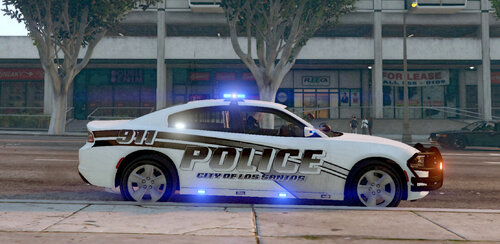
-1 2010 Dodge Charger
-1 FICTIONAL 2013 Unmarked Dodge Charger
-1 Marked Chevy Tahoe
-1 Unmarked Chevy Tahoe
There are a few scratch made parts on these cars, but it has all been Gadded by Thehurk(me)
All of the skins are made by Thehurk(me)
The handling lines and ELS files are for the vehicles in the pack, if you are looking to use any other handling lines, look here
**If i have left out any of the proper credits PLEASE LET ME KNOW VIA PM**
Skins by Thehurk
_____________________________________________________________________________
FBI(2013 Dodge Charger *FICTIONAL*)
- Original Model Civilian 2011 Dodge Charger R/T from SimRaceWay converted to IV by Dhruv
- Edited To Police Package By Lccop
- Mopar Wheels by GerryStudio Edited & converted for GTA IV by Bxbugs123
- Whelen Talon Single & Double scratch made and ELS mapped by Foward
- RCMP style Rear Deck by Thehurk
- Whelen Tir6 Scratch made by GTAxBoss ELs mapped by Thehurk
- Console by Lccop
- Panasonic Toughbook CF-31 modeled,converted and textured by Ridgerunner Designs
- Setina BodyGuard 6,7 Partition made by deco
- WatchGuard Video System Made & Converted by Bxbugs123, Textures By Bxbugs123 & WatchGuard Video
Noose(CVPI without Rambar)
_____________________________________________________________________________
- Model is Ford Crown Victoria from Driver SF, converted to GTA IV by F5544, modified by KevinDV and Cj24.
- Rims by Bxbugs123, Textures by GreenAid.
- Honeycomb Grill made by KevinDV.
- Minor model edits by GTAxBoss
- Interior merged from DSF by GTAxBoss
- Whelen Avenger by EVI
- Fed Sig Legend By EVI
- RCMP style Rear Deck by Thehurk
- Console by Foward
- Panasonic Toughbook CF-31 modeled,converted and textured by Ridgerunner Designs
- WatchGuard Video System Made & Converted by Bxbugs123, Textures By Bxbugs123 & WatchGuard Video
- Decatur Genesis I Radar Made & Converted by Bxbugs123, Textures By Bxbugs123 & DoTTGaMMa
- Setina BodyGuard 6,7 Partition made by deco
- Misc ELS mapping by Thehurk
Police(CVPI with Rambar)
_____________________________________________________________________________
- Model is Ford Crown Victoria from Driver SF, converted to GTA IV by F5544, modified by KevinDV and Cj24.
- Rims by Bxbugs123, Textures by GreenAid.
- Honeycomb Grill made by KevinDV.
- Minor model edits by GTAxBoss
- Interior merged from DSF by GTAxBoss
- Whelen Avenger by EVI
- Fed Sig Legend By EVI
- RCMP style Rear Deck by Thehurk
- Console by Foward
- Panasonic Toughbook CF-31 modeled,converted and textured by Ridgerunner Designs
- WatchGuard Video System Made & Converted by Bxbugs123, Textures By Bxbugs123 & WatchGuard Video
-Decatur Genesis I Radar Made & Converted by Bxbugs123, Textures By Bxbugs123 & DoTTGaMMa
- Setina BodyGuard 6,7 Partition made by deco
- Whelen SA314 Series Modeled & converted for GTA IV by Bxbugs123
- Main textures made by Bxbugs123
- Go Rhino Pushbar made & converted by Bxbugs123
- Main textures made by Bxbugs123
- Whelen Tir6 Scratch made by GTAxBoss, ELS mapped by Thehurk
- Misc ELS mapping by Thehurk
Police2(2010 Charger)
_____________________________________________________________________________
- Model is original Dodge Charger by EA Games, modified for and converted to GTAIV by Lex91.
- Modified to 2006 Dodge Charger Police Package by Lt.Caine, modified to 2010 Dodge Charger Police Package by deco.
- Taillights from NFS MW 2012.
- Rims Converted from DSF by Wolfrunner 86
- Setina BodyGuard 6/7 Partition by deco
- Fed Sig Legend by EVI
- RCMP rear deck by Thehurk
- Console by Lccop
- Panasonic Toughbook CF-31 modeled,converted and textured by Ridgerunner Designs
- Setina BodyGuard 6,7 Partition made by deco
Polpatriot(Marked Tahoe)
_____________________________________________________________________________
- Model is original "Chevrolet Tahoe" by 4x4 Full Driver - Hummer H2, converted to GTAIV by Stiopa.
- Model improvements & Modified By Bxbugs123
- Wheels By Bxbugs123, Textures by Lt.Caine
- Fed Sig legend by EVI
- Whelen avenger by EVI
- Tomar 200S scratch made and ELS mapped by NickieB
- Tomar RECT 13 scratch made by GTAxBoss, ELS mapped by Thehurk
- Whelen SA314 Series Modeled & converted for GTA IV by Bxbugs123
- Tahoe Setina Pushbar by NickieB
- Whelen TIR3 scratch made and ELS mapped by Master Yoda
- Tahoe Storage Container scratch made and textured by Thehurk
- Setina BodyGuard 6,7 Partition made by deco
- WatchGuard Video System Made & Converted by Bxbugs123, Textures By Bxbugs123 & WatchGuard Video
- Decatur Genesis I Radar Made & Converted by Bxbugs123, Textures By Bxbugs123 & DoTTGaMMa
- Console made by Lccop
- Panasonic Toughbook CF-31 modeled,converted and textured by Ridgerunner Designs
Pstockade(Unmarked Tahoe)
_____________________________________________________________________________
- Model is original "Chevrolet Tahoe" by 4x4 Full Driver - Hummer H2, converted to GTAIV by Stiopa.
- Model improvements & Modified By Bxbugs123
- Wheels By Bxbugs123, Textures by Lt.Caine
- Whelen Talon Double scratch made and ELs mapped by Foward
- Console made by Lccop
- Panasonic Toughbook CF-31 modeled,converted and textured by Ridgerunner Designs
- Tahoe Storage Container scratch made and textures by Thehurk
- Tomar 200S scratch made and ELS mapped by NickieB
- Setina BodyGuard 6,7 Partition made by deco
- WatchGuard Video System Made & Converted by Bxbugs123, Textures By Bxbugs123 & WatchGuard Video
- Decatur Genesis I Radar Made & Converted by Bxbugs123, Textures By Bxbugs123 & DoTTGaMMa
- Whelen Tir6 Scratch made by GTAxBoss ELS mapped by thehurk
_____________________________________________________________________________





![Arkansas State Police [4K]](http://s3-screenshots.int-cdn.lcpdfrusercontent.com/resize/500/-/monthly_2026_05/Screenshot_2716.thumb.png.206c8db8b3e9230c2692e6b5b347b435.png)

![Slovenia Emergency Service Pack - 10 Vehicle - [REPLACE] [ELS] [REFLECTIVE]](http://s3-screenshots.int-cdn.lcpdfrusercontent.com/resize/500/-/monthly_2026_05/profilbild.thumb.png.38515307375bb5cf424e5e284a989253.png)
Recommended Comments
Create an account or sign in to comment