





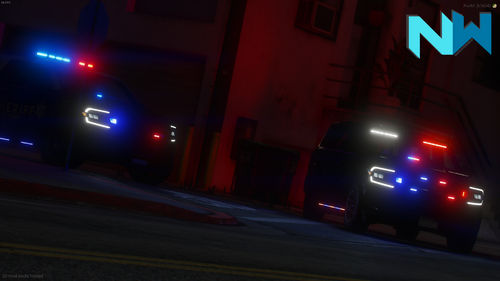
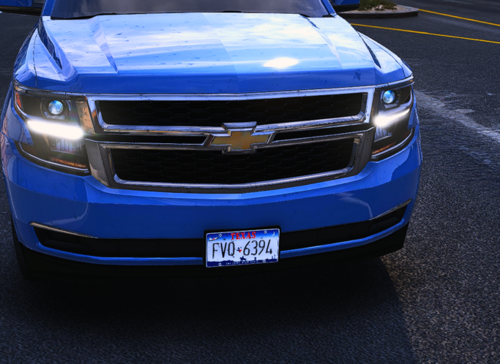
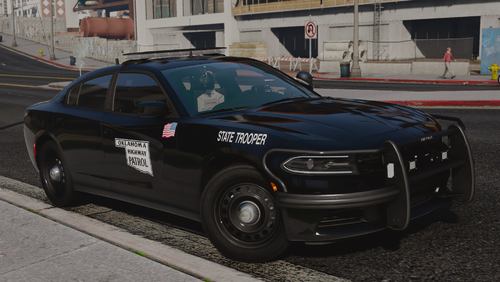
This is a 2018 Dodge Charger based on the Summerville PD's Slicktop Dodge Charger.
Edited by DonkenDevelopment
Short Description
This is a 2018 Dodge Charger based on the Summerville PD's Slicktop Dodge Charger.
Base Model
Credits
- Original vehicle model is 2015 Dodge Charger from Forza, edited into the 2018 Dodge Charger Pursuit by Matt with parts from FH3 and Gamemodels
- Seats, center mirror, shifter and dash edits modeled and done by Kane104 - commissioned by Ranger Rick
- Major help from EVI for digital dial information and help to get the dials working and his patience to help me
- Rear bumper diffuser modeled by Patrol 31 Normal edits by Steinberg
- AWD/Charger badge modeled by iansonwheels Converted to V by Matt
- AWD Steelies/Hubcap modeled by iansonwheels Converted to V by Matt
- Big thanks to Cj24 for beta testing the model and help with spec maps and normal maps and his overall knowledge of gta materials
- Interior dial textures made by NeonLazer
- Interior button textures made by Slendis
- Rims from Gamemodels.ru Centercap edited by Matt
- Dome Light modeled by Matt
- A big thanks to Cj24, Kane104, EVI, Patrol 31, Steinberg , Desmond , NeOnLaZeR, Izick, Rekram, HDgamerzPC, and a big thanks to Ranger Rick who bought 3D parts so that i wouldn't give up on this project and bought me a Zmodeler license so that i can keep working on this project Thank you Rick.
- Thank you to everyone who supported me and the project...
- Another big thanks to iansonwheels who had the time to make the AWD steelies and AWD package stuff....
Whelen LED spotlight
Whelen LED spotlight modeled and textured by Cj24
Emergency Lighting
Code 3 Wingman
Code 3 Wingman modeled and textured by Cj24.
FS Spectralux ILS
FS Spectralux ILS modeled and textured by Cj24.
Whelen ION T-Series, Mini, Strip-Lite
Whelen ION T-Series, Mini, Strip-Lite Modeled and Textured by GTAxB0SS
Pedestal Mount by Syncc
Interior
Havis Console
Modeled by Brendo Endo#3282
Textures by Cj24 #0013 Can be found here, https://www.modding-forum.com/forums/thread/811-havis-consoles-for-2011-2019-ford-police-interceptor-utility/
Plastic Normal Map by +Vincent #9999
Federal Signal Siren Controller
Federal Signal siren controller modeled and textured by Cj24.
Havis MDT Stand
- Modeled and Textured by Badger
- Screw Textures by Cj24
Motorola Radio And Mic
- Motorola TLK 150 and Motorola PMMN4129 modeled, textured, and converted to
GTA V by Sniper67.
Setina partition
Setina partition modeled and textured by Cj24.
Setina Weapon Mount And Weapons
Weapon mount and 870 shotgun modeled and textured by Cj24, M4 rifle modeled and textured by
Kane104.
Toughbook CF-31
Toughbook CF-31 modeled and textured by Cj24
Credits
- Original vehicle model is 2015 Dodge Charger from Forza, edited into the 2018 Dodge Charger Pursuit by Matt with parts from FH3 and Gamemodels
- Seats, center mirror, shifter and dash edits modeled and done by Kane104 - commissioned by Ranger Rick
- Major help from EVI for digital dial information and help to get the dials working and his patience to help me
- Rear bumper diffuser modeled by Patrol 31 Normal edits by Steinberg
- AWD/Charger badge modeled by iansonwheels Converted to V by Matt
- AWD Steelies/Hubcap modeled by iansonwheels Converted to V by Matt
- Big thanks to Cj24 for beta testing the model and help with spec maps and normal maps and his overall knowledge of gta materials
- Interior dial textures made by NeonLazer
- Interior button textures made by Slendis
- Rims from Gamemodels.ru Centercap edited by Matt
- Dome Light modeled by Matt
- A big thanks to Cj24, Kane104, EVI, Patrol 31, Steinberg , Desmond , NeOnLaZeR, Izick, Rekram, HDgamerzPC, and a big thanks to Ranger Rick who bought 3D parts so that i wouldn't give up on this project and bought me a Zmodeler license so that i can keep working on this project Thank you Rick.
- Thank you to everyone who supported me and the project...
- Another big thanks to iansonwheels who had the time to make the AWD steelies and AWD package stuff....
Whelen LED spotlight
Whelen LED spotlight modeled and textured by Cj24
Emergency Lighting
Code 3 Wingman
Code 3 Wingman modeled and textured by Cj24.
FS Spectralux ILS
FS Spectralux ILS modeled and textured by Cj24.
Whelen ION T-Series, Mini, Strip-Lite
Whelen ION T-Series, Mini, Strip-Lite Modeled and Textured by GTAxB0SS
Pedestal Mount by Syncc
Interior
Havis Console
Modeled by Brendo Endo#3282
Textures by Cj24 #0013 Can be found here, https://www.modding-forum.com/forums/thread/811-havis-consoles-for-2011-2019-ford-police-interceptor-utility/
Plastic Normal Map by +Vincent #9999
Federal Signal Siren Controller
Federal Signal siren controller modeled and textured by Cj24.
Havis MDT Stand
- Modeled and Textured by Badger
- Screw Textures by Cj24
Motorola Radio And Mic
- Motorola TLK 150 and Motorola PMMN4129 modeled, textured, and converted to
GTA V by Sniper67.
Setina partition
Setina partition modeled and textured by Cj24.
Setina Weapon Mount And Weapons
Weapon mount and 870 shotgun modeled and textured by Cj24, M4 rifle modeled and textured by
Kane104.
Toughbook CF-31
Toughbook CF-31 modeled and textured by Cj24









Recommended Comments
Create an account or sign in to comment