


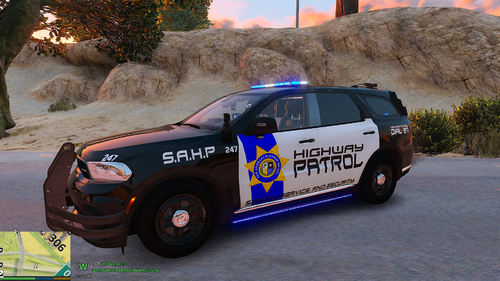
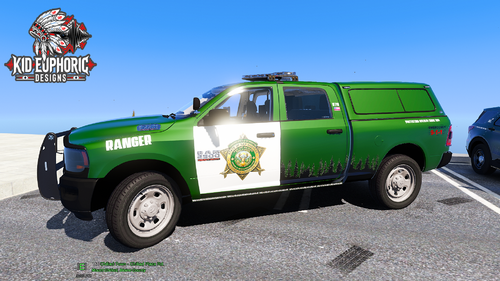
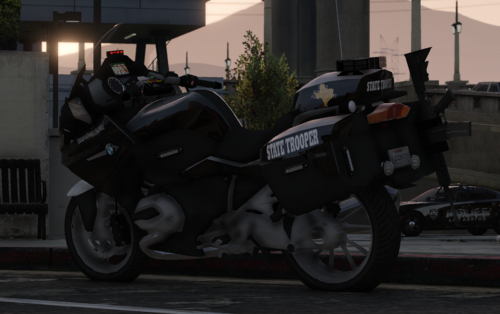
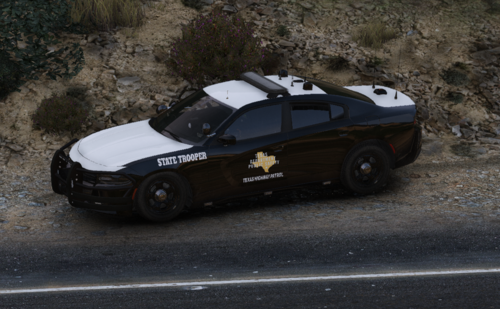
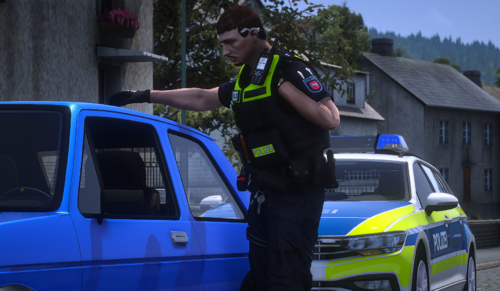
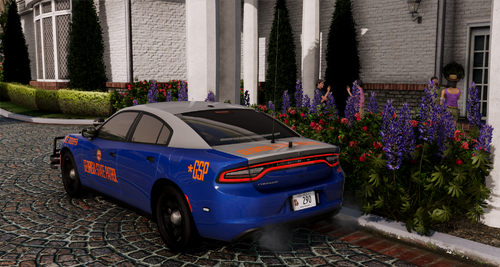
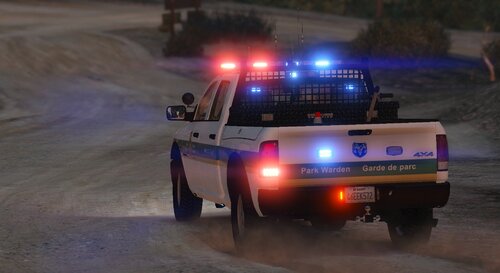
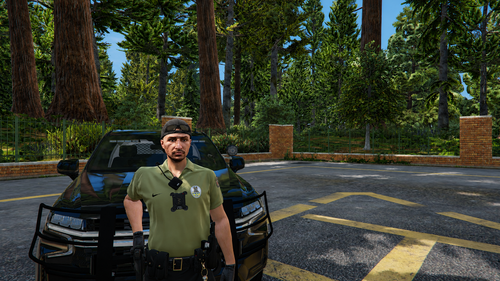
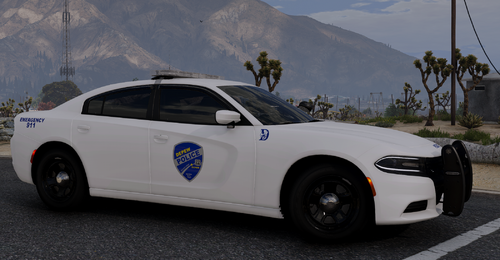
Here we have four liveries for the BCSO. Two black and two white liveries for the Charger and Durango. Loosely based on the North Carolina State Capitol Police. The badge on the car is by Summers. Awesome job on the badge. I think, it makes the paint scheme. The cars are brought to you by OfficerArk. You can use the LSCSD pack or the LSPD pack. I hope you guys enjoy. As always, possibly more to come.
**Do NOT Re-Upload Without My Permission**
VEHICLES
18 CHARGER
21 DURANGO
20 EXPLORER
BADGE USED CAN BE FOUND HERE BY SUMMERS
Edited by PhaZe
What's New in Version 1.0.2
Released
Upon request I have added a new car to line up. It is a 2018 Charger by ERA Mods, t0y, Slendis, RobertTM, and Chappie. I have altered the skin of the Charger for cars that have license plates, front and rear. The license plate on the rear is made by Cj24. The older skins have not been changed. The two new skins are in the extra file. Select that file when you download.
Short Description
Awesome vehicles by OfficerArk!!
Newly added License plate brought to you by Cj24!!
Newly added charger brought to you by ERA Mods - t0y, Slendis, RobertTM, and Chappie!!

![[ELS-Hybrid | Addon] Sandy Shores 2011 CVPI Pack](http://s3-screenshots.int-cdn.lcpdfrusercontent.com/monthly_2026_06/1.thumb.png.0352936a973262bab2cefb608858e393.png)
Recommended Comments
Create an account or sign in to comment