Skip to content
View in the app

A better way to browse. Learn more.

LCPDFR.com

A full-screen app on your home screen with push notifications, badges and more.

To install this app on iOS and iPadOS
  1. Tap the Share icon in Safari
  2. Scroll the menu and tap Add to Home Screen.
  3. Tap Add in the top-right corner.
To install this app on Android
  1. Tap the 3-dot menu (⋮) in the top-right corner of the browser.
  2. Tap Add to Home screen or Install app.
  3. Confirm by tapping Install.

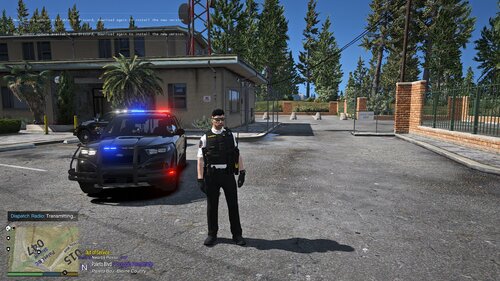
Charger 2019 Policía estatal Querétaro Add-on ELS 1.0.0

(1 review)

2 Screenshots

Servidor 911 mods: https://discord.gg/ahg9j8aGSu


Short Description

Policía estatal Querétaro

User Feedback

Recommended Comments

249Xeno

Members

I just downloaded your vehicle... and tested it out too.


I saw a steady blue burn, even without toggling the lightbar on. I had to go into my trainer and turn the component on to make the blue lights turn off and/or flash when toggled through patterns. I also observed that you have white lights over blue which looks good.


There shouldn't be any components to be turned on or off for ELS. You may want to go back and fix that issue.


SrVenuh

Members Author

On 11/20/2024 at 2:44 AM, 249PD said:

I just downloaded your vehicle... and tested it out too.


I saw a steady blue burn, even without toggling the lightbar on. I had to go into my trainer and turn the component on to make the blue lights turn off and/or flash when toggled through patterns. I also observed that you have white lights over blue which looks good.


There shouldn't be any components to be turned on or off for ELS. You may want to go back and fix that issue.


The steady blue is bc the amber lights conflicting with the other back lights so i decides to leave it that way, i recomend extra manager to fix it.

Create an account or sign in to comment

Account

Navigation

Search

Search

Configure browser push notifications

Chrome (Android)
  1. Tap the lock icon next to the address bar.
  2. Tap Permissions → Notifications.
  3. Adjust your preference.
Chrome (Desktop)
  1. Click the padlock icon in the address bar.
  2. Select Site settings.
  3. Find Notifications and adjust your preference.