


Hello, my name is JpCustomz. This is my first vehicle that i am posting to the public. I thought i would give this a shot and honestly impressed on what i did for being new to this. If you want to support me in
my creations go ahead and join my Discord.
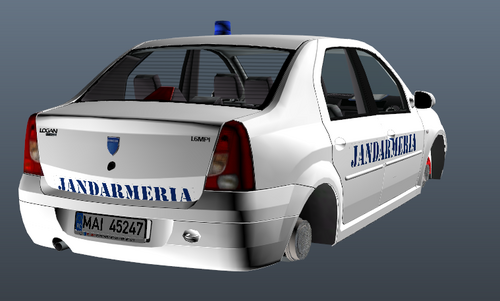
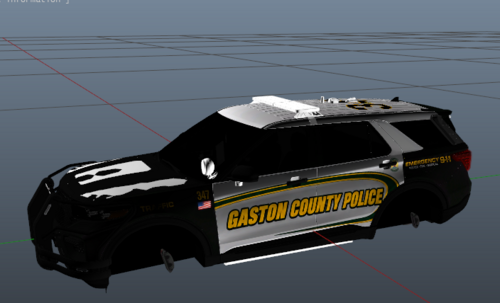
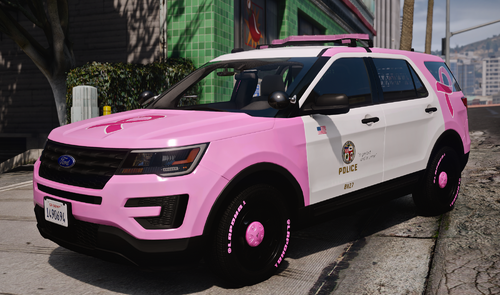
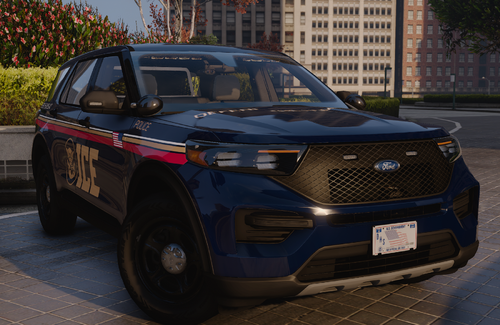
Livery in pictures are not included. They where just a example. plus they are not mine and they are paid.
Extras
Extra 1 - Lightbar
Extra 2 - Visor Light
Extra 3 - Dash light
Extra 4 - TA Bar
Extra 6 - GPS
Extra 7 - Rambar light
Extra 8 - Antennas
Extra 9 - Siderunners
Extra 10 - Rambar
Extra 11 - Partition
Extra 12 - Spotlight
Discord Link: https://discord.gg/7EzguK54pv
What's New in Version 1.0.0
Released
Fixed the trunk. ALPR's where not attached. i forgot to do it
Short Description
B&B and R&B 2011 Crown Vic.
CVPI Base Model - Murphy
Fenix 44inch Lightbar - Raz3r
Avenger2 DUO - Raz3r
SoundOff Traff used as front rambar Lightbar - Raz3r
WhelenTAC8 - Raz3r
Go Rhino Defender 5036 - SentryGunMan
Setina Partition - Cj24
Unity Halogen Spotlight 2.0 - Cj24
Havis Console - Cj24
Panasonic Toughbook - Cj24
MPH900 ALPR - BiscuitHead Modifications
Sharkfin Airlink - Billy Johnsson
AntennaPlus Antennas - Cj24
Motorola Antennas - Cj24
Setina Weapon Mount - Cj24
Feniex ONE Controller - Raz3r
Whelen Tracer - Krul
And me
Fenix 44inch Lightbar - Raz3r
Avenger2 DUO - Raz3r
SoundOff Traff used as front rambar Lightbar - Raz3r
WhelenTAC8 - Raz3r
Go Rhino Defender 5036 - SentryGunMan
Setina Partition - Cj24
Unity Halogen Spotlight 2.0 - Cj24
Havis Console - Cj24
Panasonic Toughbook - Cj24
MPH900 ALPR - BiscuitHead Modifications
Sharkfin Airlink - Billy Johnsson
AntennaPlus Antennas - Cj24
Motorola Antennas - Cj24
Setina Weapon Mount - Cj24
Feniex ONE Controller - Raz3r
Whelen Tracer - Krul
And me
- Thoffman1997 and eazbox
-
 1
1
-
 1
1


(2).thumb.png.62d8dc71a69a1994803920a19551051e.png)
Recommended Comments
Create an account or sign in to comment