


This file converts any Non - ELS vehicle, to ELS by converting the lighting sources to toggleable extra's, it does this by taking ID values from the vehicles
Carcols.ymt file and assigning an extra code from 01 - to - 12 , and the lighting pattern can also be changed the same way an ELS vehicle would be. It works on
ANY Non -ELS vehicle.
Short Description
Can be used for ANY vehicle, and light setup.
Credits to Luxart, for creating ELS in the first place.

![[Non-ELS/DLSv2] CHP BMW R1200RT-P [Addon/FiveM]](http://s3-screenshots.int-cdn.lcpdfrusercontent.com/resize/500/-/monthly_2026_04/1.Thumbnail.thumb.png.27cfb560319fde49d84f8b97a7587c1d.png)

![Ambulance Protection Civile Algérienne [ELS]](http://s3-screenshots.int-cdn.lcpdfrusercontent.com/resize/500/-/monthly_2026_04/Screenshot(150).thumb.png.8aceb0d0a35ebc9abb6c32ce785a5e27.png)
![Camion de la Protection Civile Algérienne [ELS]](http://s3-screenshots.int-cdn.lcpdfrusercontent.com/resize/500/-/monthly_2026_04/Screenshot(157).thumb.png.472fd871730c95e9b4cfbb9e927b26e5.png)
![FHP Style Belts [FIVEM Ready]](http://s3-screenshots.int-cdn.lcpdfrusercontent.com/resize/500/-/monthly_2026_04/Screenshot2026-04-24114558.thumb.png.0e174437327be7c07aba2e9e0676a6aa.png)
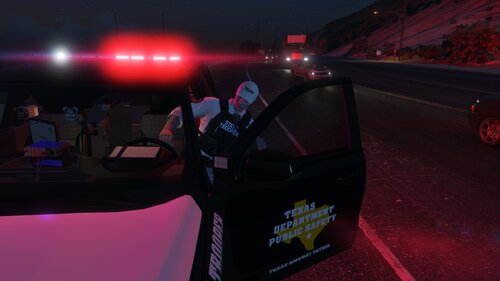
![Los Santos Police Department Package [EUP][FiveM Ready][Addon]](http://s3-screenshots.int-cdn.lcpdfrusercontent.com/resize/500/-/monthly_2026_04/Screenshot(335).thumb.png.5a33d323a9f17c6db2e357f4eaa74482.png)
![[Non-ELS] [DLS] Pomona Police Dept. Pack](http://s3-screenshots.int-cdn.lcpdfrusercontent.com/monthly_2026_04/GrandTheftAutoV4_1_20268_56_27PM.thumb.png.6d5aa40219aa8dbd1bab207d7af3260f.png)


![[DLS/Add-on] 2018 Dodge Charger PPV - Chumash Police Dept.](http://s3-screenshots.int-cdn.lcpdfrusercontent.com/monthly_2026_04/1.thumb.png.63c922010e6594423917655ad39d5cd5.png)
Recommended Comments
Create an account or sign in to comment