Skip to content
View in the app

A better way to browse. Learn more.

LCPDFR.com

A full-screen app on your home screen with push notifications, badges and more.

To install this app on iOS and iPadOS
  1. Tap the Share icon in Safari
  2. Scroll the menu and tap Add to Home Screen.
  3. Tap Add in the top-right corner.
To install this app on Android
  1. Tap the 3-dot menu (⋮) in the top-right corner of the browser.
  2. Tap Add to Home screen or Install app.
  3. Confirm by tapping Install.

LC Noose Ford Explorer Skin 1

(4 reviews)

7 Screenshots

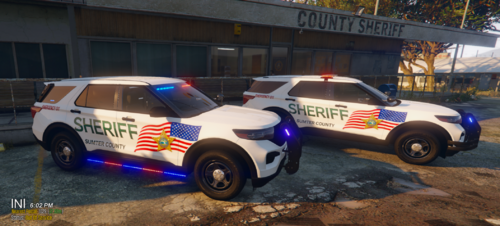
This is LC Noose livery I made for the 2013 Ford Explorer by UndercoverChicken.

I haven't found any LC noose liveries for this model so decided to upload it here.

This is my 1st submission so please rate and comment. :thumbsup:

Link to the model I used for screen shots;

compatible models;

FE by KevinDV

FE by Policefanatic (model I mentioned above)

FE by EVI

You need to choose the skin compatible with the model you are using. Please refer to the readme of a model to find out the owner of that specific model.

What's New in Version 1

Released

  • Added skins to 2 more models, now supporting those models too;
  • FE by KevinDV
  • FE by EVI

User Feedback

Recommended Comments

NLM

Members Author

There are 2 skins for each model.

One with LC Noose Text visible on the bonnet and roof and one without this text.

You can choose which one to apply.

Please see the screen shots I have attached.

First 3 screen shots features the skin with LC Noose text and last 3 without it.

bonehead

Members

to me this isn't 5 stars just saying more like 3... the text is too big the logo is massive and the 2 decal lines are ugly

RyanG

Members

^

NLM

Members Author

sorry guys; but I tried to make it looks like the original polpatroit. (It has

NLM

Members Author

to me this isn't 5 stars just saying more like 3... the text is too big the logo is massive and the 2 decal lines are ugly

Create an account or sign in to comment

Account

Navigation

Search

Search

Configure browser push notifications

Chrome (Android)
  1. Tap the lock icon next to the address bar.
  2. Tap Permissions → Notifications.
  3. Adjust your preference.
Chrome (Desktop)
  1. Click the padlock icon in the address bar.
  2. Select Site settings.
  3. Find Notifications and adjust your preference.