Skip to content
View in the app

A better way to browse. Learn more.

LCPDFR.com

A full-screen app on your home screen with push notifications, badges and more.

To install this app on iOS and iPadOS
  1. Tap the Share icon in Safari
  2. Scroll the menu and tap Add to Home Screen.
  3. Tap Add in the top-right corner.
To install this app on Android
  1. Tap the 3-dot menu (⋮) in the top-right corner of the browser.
  2. Tap Add to Home screen or Install app.
  3. Confirm by tapping Install.

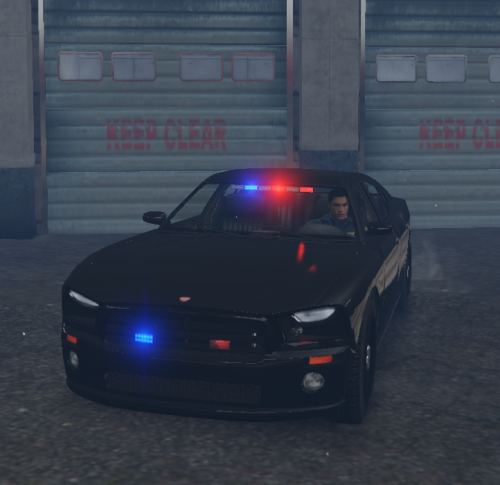
Monroe County, MI Sheriff's Charger Skin v1.0

(3 reviews)

13 Screenshots

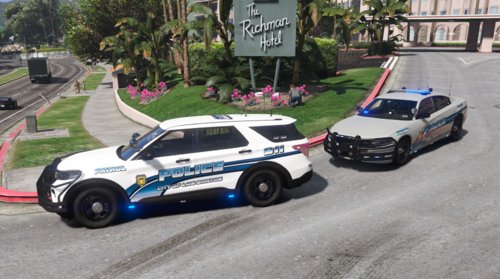
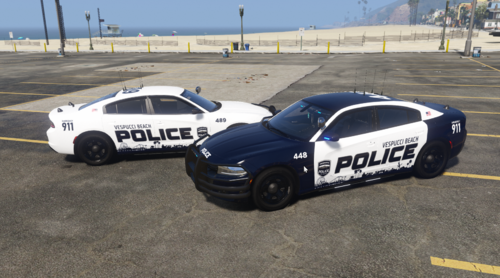
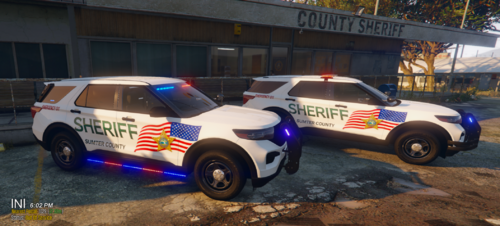
This is my vision of a reimage Monroe County Sheriff's vehicle layout... because their current design is boring - very boring. The vehicle skin changes appearance during the day and nighttime time-cycle. Very HQ black and blue skins... Enjoy!

User Feedback

Recommended Comments

Dhruv

Members

*Laughs like Dark Knight Joker*

Hoohoo hehehehe haah ahah!!

Now you'll tell me what program do you use to churn out these lovely skins.

Nutt

Members Author

CS5 my friend...

Dhruv

Members

Then why the hell I can't make skins like you do? xD I have CS5,too!

Nutt

Members Author

Dhruv, your skins are excellent - no complaints here. I think; but I'm not a 100% sure, I can make certain vehicle textures glow at night in GTA 4. Something I did by accident... lol

Deactivated Member

Deactivated

(edited)

--

Edited by tobeymaguire

Nutt

Members Author

No not this one... lol, I'm working on something new.

P.S. The texture scheme on this layout doesn't change, rather the way it interacts with the game's time-cycles. Using certain color blends/textures and the interaction with a dynamic light source (time-cycle) will give an illusion from a solid color pattern to a multicolor pattern. Really looks good with ENB and iCEnhancer setups...

Create an account or sign in to comment

Account

Navigation

Search

Search

Configure browser push notifications

Chrome (Android)
  1. Tap the lock icon next to the address bar.
  2. Tap Permissions → Notifications.
  3. Adjust your preference.
Chrome (Desktop)
  1. Click the padlock icon in the address bar.
  2. Select Site settings.
  3. Find Notifications and adjust your preference.