Skip to content
View in the app

A better way to browse. Learn more.

LCPDFR.com

A full-screen app on your home screen with push notifications, badges and more.

To install this app on iOS and iPadOS
  1. Tap the Share icon in Safari
  2. Scroll the menu and tap Add to Home Screen.
  3. Tap Add in the top-right corner.
To install this app on Android
  1. Tap the 3-dot menu (⋮) in the top-right corner of the browser.
  2. Tap Add to Home screen or Install app.
  3. Confirm by tapping Install.

[Non-ELS] 2014 Unmarked Charger PPV 1.0.0

(0 reviews)

6 Screenshots

2014 Unmarked Charger PPV

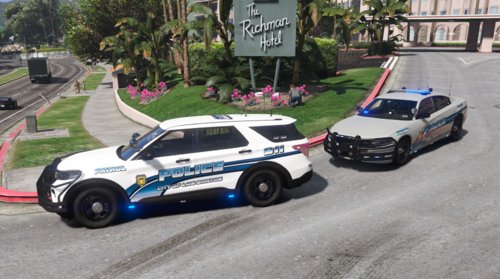
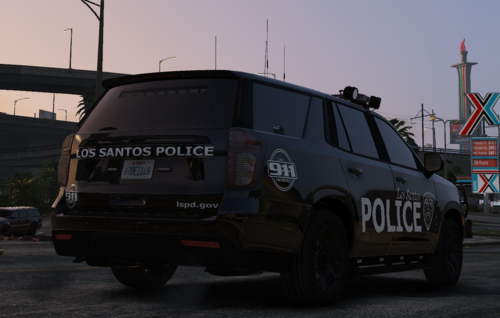
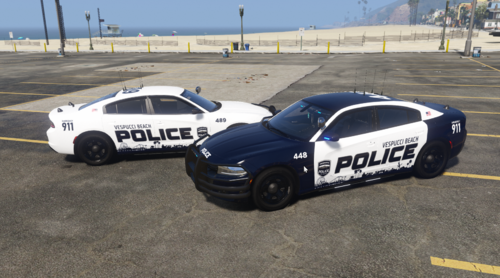
So I decided to make something that wasn't overly excessive with lights but wasn't too little in lighting and out came this. It has the rambar and pit wrap so that if someone wants to put a ghosted skin on it it can look 10x better with said skin.

This model comes with 5 different extras:

Extra_1 - Rambar

Extra_2 - Pit Wrap

Extra_3 - Spotlight Up

Extra_4 - Spotlight Down

Extra_5 - Side Lighting


If you want to see sneak peaks and get access to Discord only releases then go ahead and join my Discord here!

My Discord!


Short Description

Clean looking unmarked

User Feedback

Recommended Comments

RedLegs13B

Members

I love this charger, but I noticed that the rear deck lights do not come on with the rest of the lights 😥

Ghost Development Studios

Members Author

54 minutes ago, RedLegs13B said:

I love this charger, but I noticed that the rear deck lights do not come on with the rest of the lights 😥

They do, check your carcols ID in the carcols and carvariations

RedLegs13B

Members

3 hours ago, Ghost Development Studios said:

They do, check your carcols ID in the carcols and carvariations

I'm lost on how to go about that. I've tried looking into it, but I'm still confused. Sorry to ask, but Would you mind explaining? 

help.png

RedLegs13B

Members

Nevermind brother, I actually figured out how to edit all of those today!

Create an account or sign in to comment

Latest Mods

Account

Navigation

Search

Search

Configure browser push notifications

Chrome (Android)
  1. Tap the lock icon next to the address bar.
  2. Tap Permissions → Notifications.
  3. Adjust your preference.
Chrome (Desktop)
  1. Click the padlock icon in the address bar.
  2. Select Site settings.
  3. Find Notifications and adjust your preference.