


This is a simple script that allows you to do:
/ondutylspd
/ondutysahp
/ondutybcso
/ondutyunmarked
/offduty
After entering one of those commands, It will change your Ped, Give you a Police loadout, Then spawn you inside of your cop car ready for patrol.
_________________________________________________________________________________________________________________________________________________________
DO NOT CLAIM THIS AS YOUR OWN.
Please Ask For Permission To Re-post this file / upgrade it.
Edited by lewiej123
Adding More The The Description.
Short Description
This is a basic script for FiveM Allowing you to go on duty.
![Savannah, GA / Los Santos PD Liveries Pack + Extra Departments [Reflective]](http://s3-screenshots.int-cdn.lcpdfrusercontent.com/resize/500/-/monthly_2026_07/Screenshot2026-07-03205501.thumb.png.feee31e3006d347b35d9413f2fc06707.png)

![2026 Chandler Police Pack [N-ELS] [DLSV2] [Addon]](http://s3-screenshots.int-cdn.lcpdfrusercontent.com/monthly_2026_07/271590_20260703122414_1.thumb.png.cb597e92f72a188b3bcaff8b4237faaf.png)


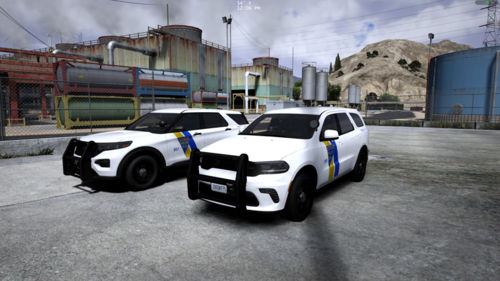
![2026 SDHP Pack [WIP]](http://s3-screenshots.int-cdn.lcpdfrusercontent.com/monthly_2026_07/20260702123143_1.thumb.jpg.56df378336e99be0d524c8b0977dcf16.jpg)



Recommended Comments
Create an account or sign in to comment