


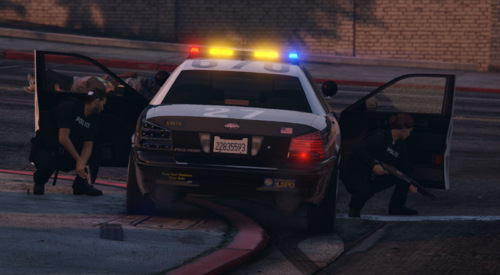
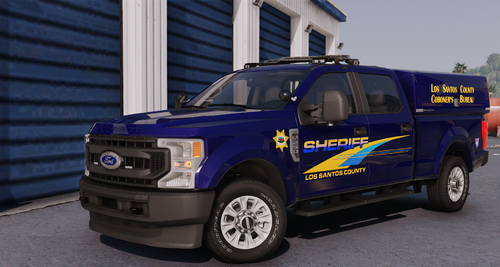
Some Sheriff skins i made for the charger and CVPI, they are pretty simple but i really like them. The CVPI looks really good on the els H California Highway Patrol which you can get on GPM.
*I know there are not screenshots yet but i am working on that. they wont open in paint so if you have any suggestions that would be very helpful. Please do not just say " Screen Shots PLease" *

![[EUP] COLP](http://s3-screenshots.int-cdn.lcpdfrusercontent.com/resize/500/-/monthly_2026_05/COL_2.thumb.png.8f6eb8191867522992ea01416d182a80.png)
![[EUP] CBRN](http://s3-screenshots.int-cdn.lcpdfrusercontent.com/resize/500/-/monthly_2026_05/CBRN_2.thumb.png.f03f06680f58ccff02223a2fe99e473b.png)
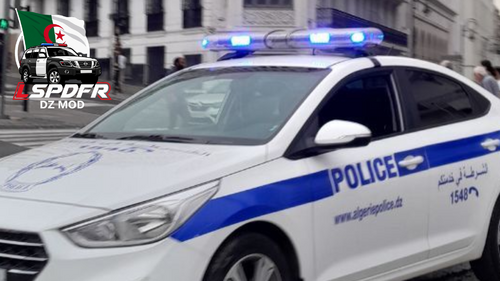
.thumb.png.bd195e42a078bb7c7f3a1182f03e9694.png)
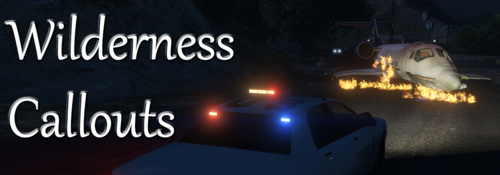
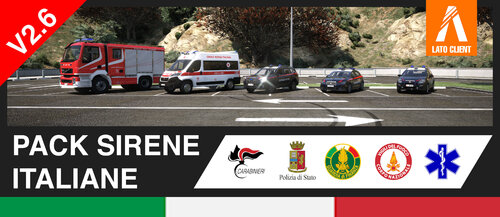
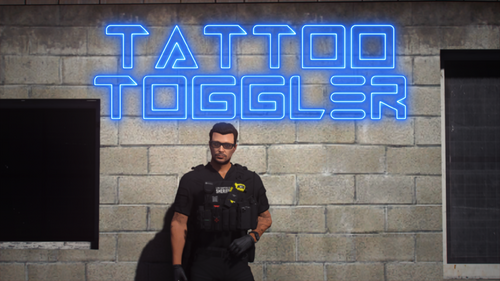
![[Non-ELS/DLSv2] Generic BMW R1200RT-P [Addon/FiveM]](http://s3-screenshots.int-cdn.lcpdfrusercontent.com/resize/500/-/monthly_2026_05/1.Thumbnail.thumb.png.1755ddcc24711022d8951345c49501b7.png)


![[DLS/Add-on] New York Police Pack](http://s3-screenshots.int-cdn.lcpdfrusercontent.com/resize/500/-/monthly_2026_04/preview.thumb.png.18b807af87cc2bc0f01f1e6156a9ad39.png)
![台灣警車 Taiwan Police Car(2016 Ford Mondeo)[ADD-ON|ELS]](http://s3-screenshots.int-cdn.lcpdfrusercontent.com/resize/500/-/monthly_2026_04/271590_20260403180956_1.thumb.png.553e9d7daaf5ab08616b5417d74f863c.png)
Recommended Comments
Create an account or sign in to comment