Skip to content
View in the app

A better way to browse. Learn more.

LCPDFR.com

A full-screen app on your home screen with push notifications, badges and more.

To install this app on iOS and iPadOS
  1. Tap the Share icon in Safari
  2. Scroll the menu and tap Add to Home Screen.
  3. Tap Add in the top-right corner.
To install this app on Android
  1. Tap the 3-dot menu (⋮) in the top-right corner of the browser.
  2. Tap Add to Home screen or Install app.
  3. Confirm by tapping Install.

Sandy Shores Police Ped Texture. 1.0.0

(2 reviews)

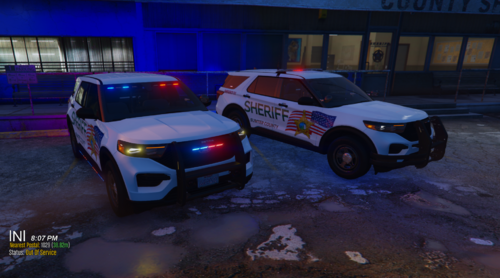
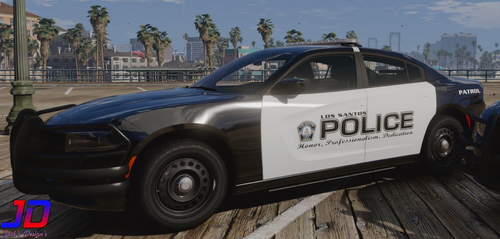
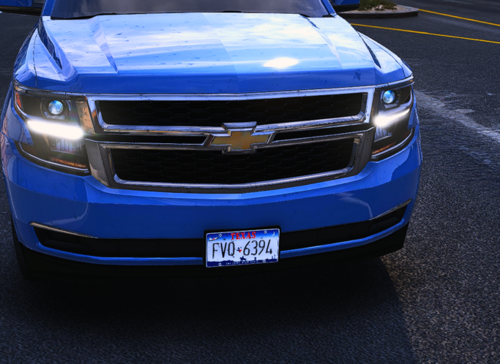
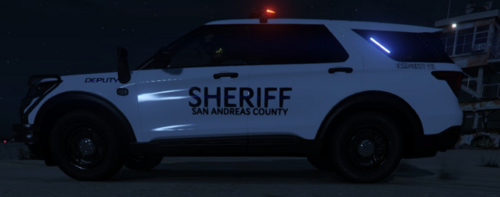
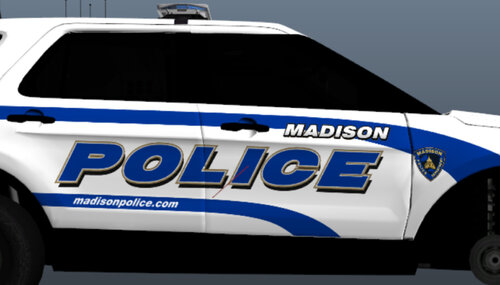
4 Screenshots

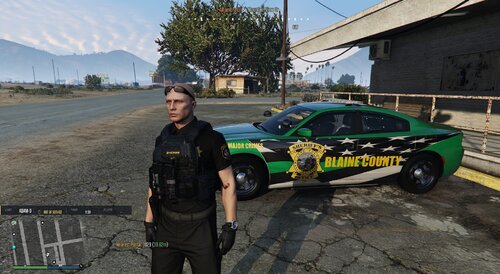
Sandy Shores Police Ped Texture.
Currently in Version 1.0.0
 

Details.

  1. This is yet another addition to my Small Town Ped Pack, that being a Sandy Shores Police Department Ped. Unlike my Grapeseed Township Ped, I didn't have a vehicle pack/texture in mind when making this, however, I'm sure there are a lot of great ones out there to use with this ped. I wanna thank everyone for the great support on my Grapeseed Police Texture. Expect more to come! Many more plans.


Improved LSPD Officer.

Spoiler


FAQ

   Q: Do you take requests?

   A: It depends on my schedule, but yes.


   Q: Do you do car textures as well?

   A: Yes!


Credits.

Baud0412 - Improved LSPD Officer.

EUP Team (For the belts, and textures.)


This file was created by MickeyJD. Please don't reupload or redistribute this texture without my permission.

User Feedback

Recommended Comments

irkevin

Members

Great job! Can't wait for the Paleto Bay one so I can have the full set! 

itsmickey

Members Author

On ‎2‎/‎27‎/‎2018 at 6:30 PM, irkevin said:

Great job! Can't wait for the Paleto Bay one so I can have the full set! 

Neither can I! It's coming.

majc83

Members

what base ped should these textures be added to?

itsmickey

Members Author

12 minutes ago, majc83 said:

what base ped should these textures be added to?

It's attached to the post.

Create an account or sign in to comment

Account

Navigation

Search

Search

Configure browser push notifications

Chrome (Android)
  1. Tap the lock icon next to the address bar.
  2. Tap Permissions → Notifications.
  3. Adjust your preference.
Chrome (Desktop)
  1. Click the padlock icon in the address bar.
  2. Select Site settings.
  3. Find Notifications and adjust your preference.