




.png.4b6a6cd5a8d878560ff5c9d71541ca63.png)
.png.051aa55e419b8c6ff8568ccbc8cb73af.png)

.png.9478d281a3059a1df9318a69420a7ea7.png)

.png.4dabc724154b9fbb8440135e1ca2c88e.png)

.png.758bdb2a1f21abb3e2793782b53e7432.png)


HELLO PEOPLE OF LSPDFR
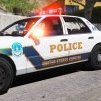
HERE GO A NEW HIGHWAY PATROL K-9 UNIT 1995 Chevrolet Caprice
Big Thank To @Parker J Strickland For the amazing screenshots
If anyon e has any texture requests PM me and I'll get back to you ASAP.A good review is always nice. Thanks.
If you use my textures on YouTube can you PM me the link please

JOHNPOPE85 TEXTURES
CHP
1994 Chevrolet Caprice
CHP
1994 Chevrolet Caprice

![[EUP 9.3] Greek Police Uniform Pack](http://s3-screenshots.int-cdn.lcpdfrusercontent.com/resize/500/-/monthly_2021_03/logo.thumb.png.f248a1efd9c277ed2c5badbdf6fb5594.png)



![[DLS 2.0] 1985 Ford LTD Crown Victoria P72 - Los Angeles Police (LAPD)](http://s3-screenshots.int-cdn.lcpdfrusercontent.com/monthly_2026_06/20260601100908_1.thumb.jpg.2d14229a7f262624616f9189acb4904e.jpg)
![[Non-ELS / ULC] Baltimore Police Department 2022 FPIU](http://s3-screenshots.int-cdn.lcpdfrusercontent.com/monthly_2026_06/Screenshot2026-06-10152851.thumb.png.57b768054bfb150265a65ddb8918f930.png)


Recommended Comments
Create an account or sign in to comment