


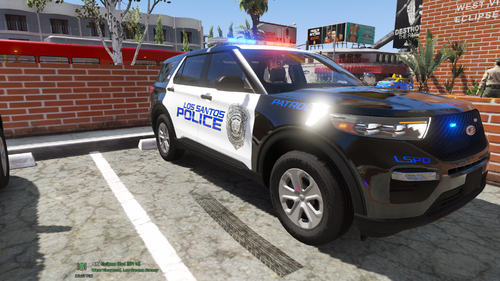
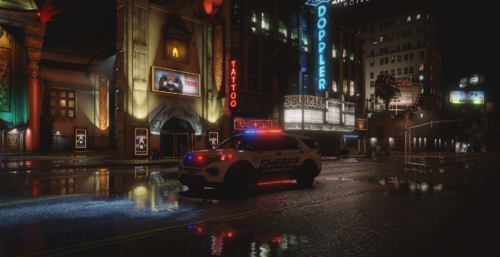
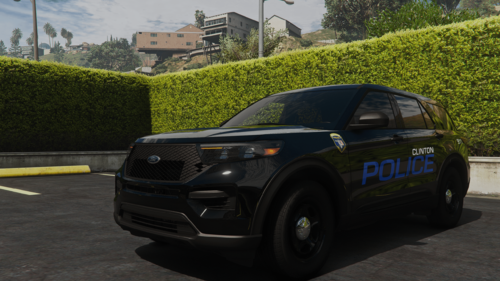
This is a skin pack inspired by the New Orleans PD. New Orleans is replaced with Los Santos and Louisiana with San Andreas keeping the pack lore friendly.
There is a K9 skin for both the Charger and the Explorer, also there is a breast cancer awareness october skin for the Explorer.
IF YOU WANT ANY VEHICLE, MODEL OR A TEMPLATE ADDED TO THE PACK JUST LEAVE A COMMENT BELLOW

Vehicles used in the screen shots (Many vehicles use the same base model so the skins will work with a lot of vehicles):
CVPI by BxBugs123:
Explorer by Thehurk:
Charger by BxBugs123:
Impala by BxBugs123:
Taurus by Gump:
ELS LSPD Pack by Thegreathah:
INSTALL AT YOUR OWN RISK. I AM NOT RESPONSIBLE IF YOU BRAKE YOUR GAME. ALWAYS MAKE BACKUPS.
DO NOT RE-UPLOAD
DO NOT UPLOAD TO ANY OTHER SITES
ANY FEEDBACK WILL BE APPRECIATED
BxBugs123
Thehurk
Gump
Thegreathah


![Texas DPS EUP Package [ADDON & REPLACE]](http://s3-screenshots.int-cdn.lcpdfrusercontent.com/resize/500/-/monthly_2026_06/Screenshot2026-06-05005718.thumb.png.371b7aedeca385b6384ad05056d122ab.png)


![[NON-ELS] [FiveM] Ocoee, FL 2020 FPIU](http://s3-screenshots.int-cdn.lcpdfrusercontent.com/resize/500/-/monthly_2026_06/Screenshot_2026-06-03_162903.thumb.png.3ac74b70588ed2f59e89c5435ec0f5c5.png)

Recommended Comments
Create an account or sign in to comment