Skip to content
View in the app

A better way to browse. Learn more.

LCPDFR.com

A full-screen app on your home screen with push notifications, badges and more.

To install this app on iOS and iPadOS
  1. Tap the Share icon in Safari
  2. Scroll the menu and tap Add to Home Screen.
  3. Tap Add in the top-right corner.
To install this app on Android
  1. Tap the 3-dot menu (⋮) in the top-right corner of the browser.
  2. Tap Add to Home screen or Install app.
  3. Confirm by tapping Install.

LCPD Buffalo Livery Pack v1.0

(2 reviews)

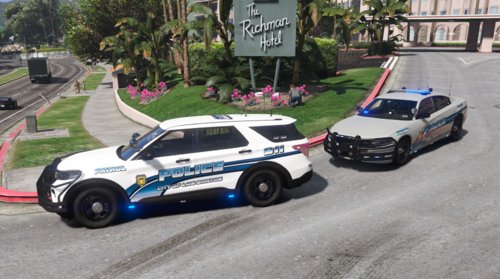
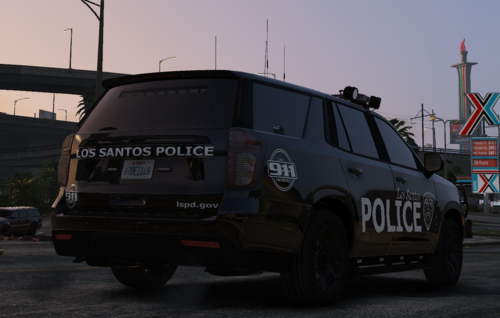
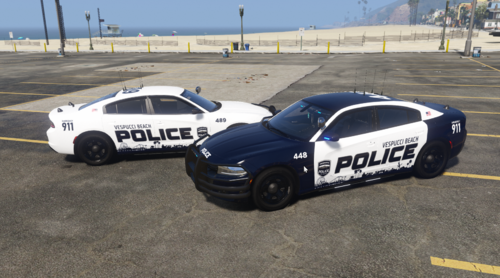
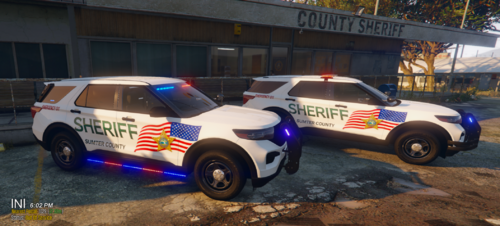
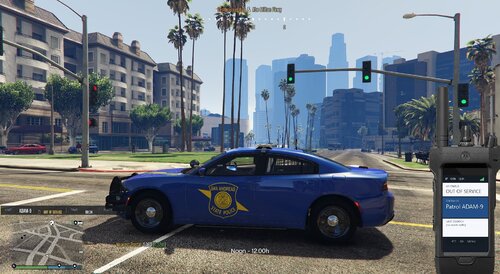
4 Screenshots

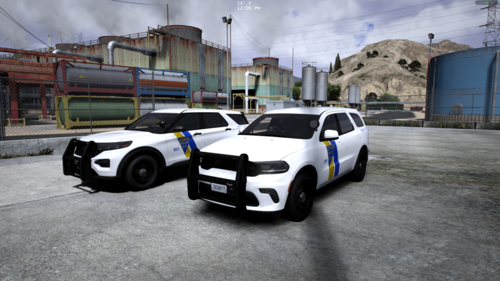
LCPD Buffalo Livery Pack

INCLUDES:

-Four unique LCPD liveries for each livery slot within Ekalb's excellent Buffalo model.

BLURB:

Once again these were made to coincide with Lt. Caine's excellent POLC v3.6 & POLP v3.5 and their LCPD skins to match their real-life counterparts. Great pains were taken to get these as close to the real thing as possible, and of course this was optimized for low end PC's and people who like to keep it "lore-friendly" so to speak.

BIG shout out to Ekalb and his fantastic work!!! I have been waiting for someone to make this model for a LONG time, and Ekalb was kind enough to fill my request, and I am OCD about this stuff. Go download his model! *golf clap*

ENJOY!!!

User Feedback

Recommended Comments

Ekalb

Members

Much more true to the NYPD reference, very good stuff DLer

Yard1

Friends of LSPDFR

Excellent!

DLer

Members Author

Now to figure out how to remove the caps from the wheel...Ekalb, if I remove the main one on the drivers front side, does it remove them for all 4 sides?

JasonWFischer

Members

Can you please make the Buffalo police.wtd, police2.wtd etc. There are only .png files in the folder download.

GeantPoire7906

Members

@DLerWould be amazing to see Alderney State Police for them

Create an account or sign in to comment

Account

Navigation

Search

Search

Configure browser push notifications

Chrome (Android)
  1. Tap the lock icon next to the address bar.
  2. Tap Permissions → Notifications.
  3. Adjust your preference.
Chrome (Desktop)
  1. Click the padlock icon in the address bar.
  2. Select Site settings.
  3. Find Notifications and adjust your preference.