


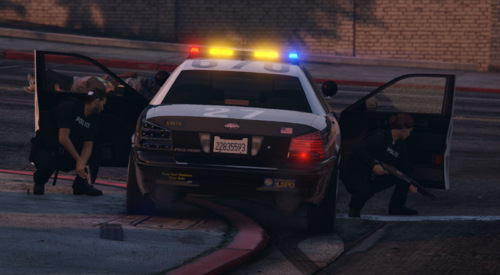
Hi there everybody! This is my second skin, so take that into consideration.. This model is NOT made by me! The model credits go to BxBugs123 model:
INSTALLATION:
- Start off by opening your skin file that you just downloaded
- Drag and drop the .png file to your desktop or any folder that you would like
- Open up OpenIV
- Grand Theft Auto V: Windows
- Click on Edit mode [Top right]
- Go to: update/x64/dlcpacks/patchday3ng/dlc.rpf/x64/levels/gta5/vehicles.rpf
- Find (Filter) police2
- Double click the police2.ytd
- Looking to your left, find impa14_sign_1
- What I did was I actually got rid of impa14_sign_2, by clicking on it and in the top right click delete
- DON'T DELETE impa14_sign_1
- When you are on police_sign_1, click Replace [should be next to delete]
- Find wherever you placed your Thin Blue Line Tribute Police skin and click that to replace the original skin
This is still a Work In Progress simply because I can still add more stuff to it, just let me know down in the comments or in the review how you would like me to update the skin, (adding more stuff to it, changing stuff, removing stuff, etc.) and I will try my best to do just that.
Thanks for checking out my Thin Blue Line Tribute Police skin! I hope you enjoy it, there's plenty more to come!




![[EUP] COLP](http://s3-screenshots.int-cdn.lcpdfrusercontent.com/resize/500/-/monthly_2026_05/COL_2.thumb.png.8f6eb8191867522992ea01416d182a80.png)
![[EUP] CBRN](http://s3-screenshots.int-cdn.lcpdfrusercontent.com/resize/500/-/monthly_2026_05/CBRN_2.thumb.png.f03f06680f58ccff02223a2fe99e473b.png)
.thumb.png.bd195e42a078bb7c7f3a1182f03e9694.png)
![[Non-ELS/DLSv2] Generic BMW R1200RT-P [Addon/FiveM]](http://s3-screenshots.int-cdn.lcpdfrusercontent.com/resize/500/-/monthly_2026_05/1.Thumbnail.thumb.png.1755ddcc24711022d8951345c49501b7.png)


Recommended Comments
Create an account or sign in to comment