





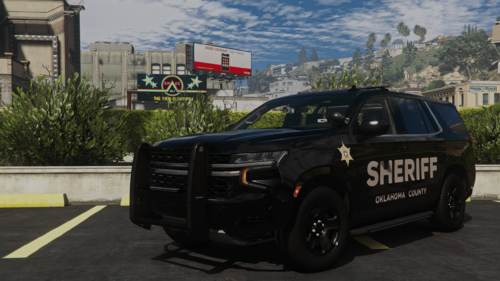
[ELS] 2020 Chevy Tahoe UBCS Skin by amiego1994
---------------------------------------
---Installation---
1) Install the original Car from Steve6645
and install it in this location:
Grand Theft Auto V> Update > X64 > dlcpack > Patchday25ng > dlc.rpf > X64 > Levels > GTA5 > Vehicles
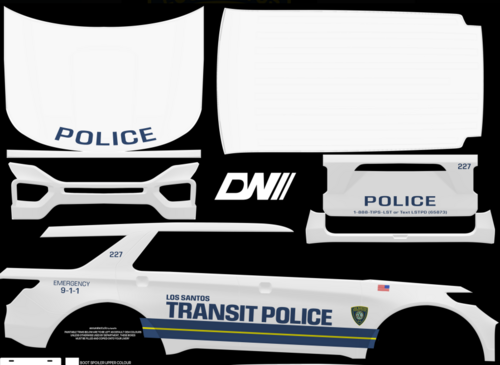
2)[FOR ADVANCED USERS] Just go into both .ytd files and replace the skin with the .PNG files.
(the .PNG files do have already the right name)
2)[FOR BEGINNERS] Stay in this path and do right-click the "fbi2.ytd" file and select "Edit", then find the skins you have to replace and replace it.
Now right-click the "fbi2+hi.ytd" and replace the "tahoe_sign_1" skin.
4) Last step is to replace the .xml file for the lightning. Just replace the "fbi2.xml" file in this Location
Grand Theft Auto V> ELS> pack_default
Voila, its done.
---------------------------------------
---Disclaimers---
If you make a video, then link the original car and the skin.
Don't reupload my Skin
(or i will shit in your mailbox)
Edited by amiego1994
Short Description
https://www.lcpdfr.com/downloads/gta5mods/vehiclemodels/49430-els-unmarked-2020-chevy-tahoe/
![[FiveM Ready] Police Nylon Utility Belt](http://s3-screenshots.int-cdn.lcpdfrusercontent.com/resize/500/-/monthly_2026_05/render1.thumb.png.a745d46250092a7c93274c273cac51b6.png)

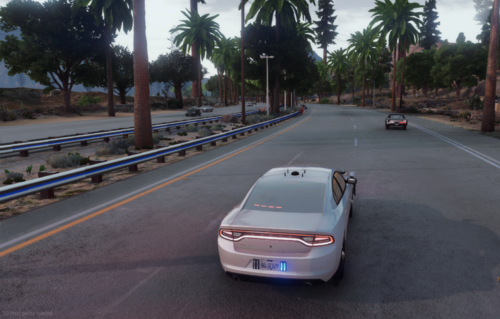
.thumb.png.afea87ee51864d1828b2faee0c0ac7d6.png)


Recommended Comments
Create an account or sign in to comment