





Hello, I created a texture for scout 2016 (I couldn't find it anywhere) on K9, the texture is totally created by me, although I obviously took textures from different places and googled to finish it, if someone is going to use it on a server, video, or whatever, I don't need you to let me know or give me credits, you are free to use it, I hope you like it and sorry for any errors you may find in it, the tutorial on how to install it is not the best, but oh well.
This is the scout model for the texture, in this case, I clearly used the one from LSPD.
The first thing we are going to do is download the scout pack that we can find in GTA5mods (https://www.gta5-mods.com/vehicles/vapid-scout-patrol-emergency-services-pack).
Once we install that package in our game, we will have to enter the nscoutlspd.ytd texture, in there, in the box on the left (see where all the names of the textures appear) we will drag the .dds that I left in winrar.
When we are inside the game or our server, it is only a matter of changing the selected livery with an ingame editor, such as Menyoo for single player mode.
Edited by MatiDZ
Short Description
>> Support to create the texture: vladimir850 (https://www.lcpdfr.com/downloads/gta5mods/vehiclestextures/12869-lapd-template-fonts-logos-stickers/)



![[NON-ELS] [FiveM] Ocoee, FL 2020 FPIU](http://s3-screenshots.int-cdn.lcpdfrusercontent.com/resize/500/-/monthly_2026_06/Screenshot_2026-06-03_162903.thumb.png.3ac74b70588ed2f59e89c5435ec0f5c5.png)


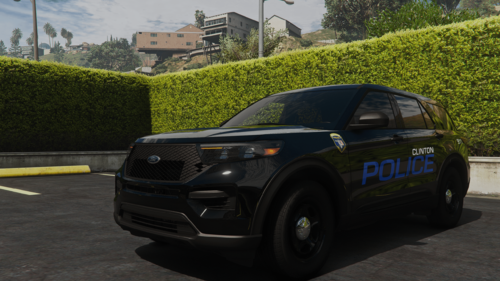
![Collar Pin Brass Pack [Replace]](http://s3-screenshots.int-cdn.lcpdfrusercontent.com/resize/500/-/monthly_2026_06/image_2026-06-03_152604243.thumb.png.ace2e2c84796c58aeba089f1e24d350e.png)
![Washington State Patrol Campaign Hat [Replace]](http://s3-screenshots.int-cdn.lcpdfrusercontent.com/resize/500/-/monthly_2026_06/image_2026-06-03_150435590.thumb.png.eb642a0be307240999dc566c8d5624c0.png)
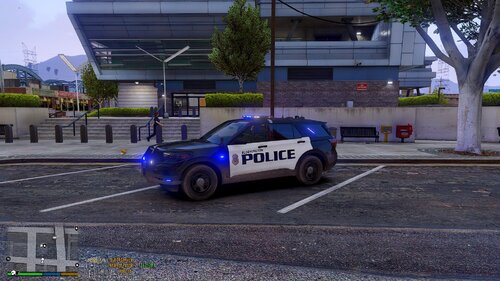
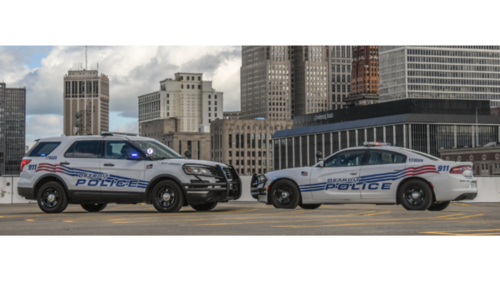
![Tennessee Highway Patrol EUP Package [Replace]](http://s3-screenshots.int-cdn.lcpdfrusercontent.com/resize/500/-/monthly_2026_06/image_2026-06-03_111405187.thumb.png.63ffbb896d64b24bdebe086f8c4e3095.png)
Recommended Comments
Create an account or sign in to comment