





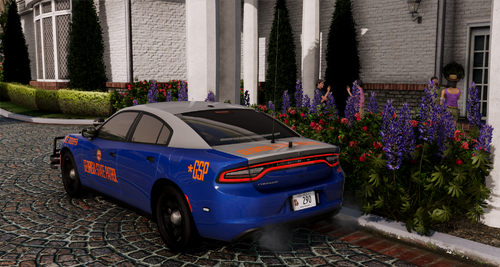
This is an Oceanside inspired LSPD texture pack which covers a number of vehicles including the CVPI, Tahoe, 2013 FPIU and the 2009 Charger. These textures are all created from scratch with hand-crafted decals in high quality.
NOTES
- Multiple livery support included.
- Textures are created in high resolution.
INSTALLATION
- Relevant vehicle models must be installed first prior to installing these textures.
- OpenIV software is required to install these textures.
- It is recommended that you use a mods folder in order to keep the original game files. OpenIV will allow you to do this.
- 1. Using OpenIV, navigate to the following path of which the vehicle models are located. Unless you are installing these in another location then I recommend these file path(s) listed below:
Police vehicle files can be found in: mods/GTAV/mods/x64e.rpf/levels/gta5/vehicles.rpf
Police2 vehicle files can be found in mods/update/x64/dlcpacks/patchday3ng/dlc.rpf/x64/levels/gta5/vehicles.rpf
Police3 vehicle files can be found in mods/update/x64/dlcpacks/patchday4ng/dlc.rpf/x64/levels/gta5/vehicles.rpf
- 2. Open the "vehicles.rpf" file.
- 3. Replace the corresponding textures in the .ytd texture dictionary files with these provided.
E.g. police.ytd, police2.ytd and police3.ytd
- 4. Save changes.
- 5. Enjoy!
SUPPORTED MODELS (May also fit similar models)
CVPI & Tahoe - OfficerFive0
Charger - Maurice97
FPIU - thegreathah
- xDZYx and Riki.PR.15
-
 2
2

![BMW M4 Glasslight [FiveM Ready] (GL Customs)](http://s3-screenshots.int-cdn.lcpdfrusercontent.com/resize/500/-/monthly_2026_06/7eeaf64a-932e-4ed4-a82b-4980024b5f24.thumb.png.3f0edd4a9eec04c052396aaf801297cd.png)
.thumb.png.da5c7eee82d68f346aa6969a885f9573.png)




.thumb.png.00b47e3fbc1a84f800b0da788a29270a.png)
![SandyShoresReborn [SP/FiveM]](http://s3-screenshots.int-cdn.lcpdfrusercontent.com/monthly_2026_01/SandyShoresReborn-Logo.thumb.png.d792435140452b1d9929ff7a2b20d8ec.png)

Recommended Comments
Create an account or sign in to comment