


6,212 files
-
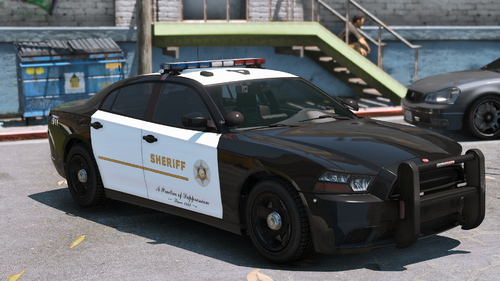
- 2 Downloads
- 120 Views
- 12.59 MB File Size
Updated -
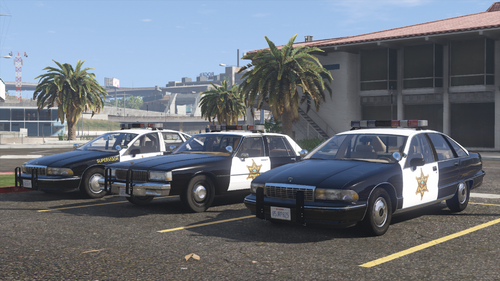
- 213 Downloads
- 2828 Views
- 39.84 MB File Size
- 8 Comments
Updated -
.thumb.png.f2b6c5620f07470dda09b19298a75844.png) FiveM Ready Blue & White Lighting 2022 Unmarked Mach E GT
FiveM Ready Blue & White Lighting 2022 Unmarked Mach E GT- 113 Downloads
- 1344 Views
- 27.36 MB File Size
- 2 Comments
Updated -
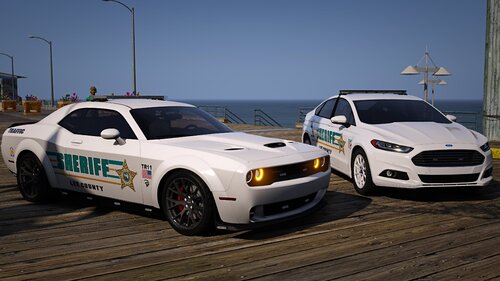
- 391 Downloads
- 3663 Views
- 235.67 MB File Size
- 9 Comments
Updated -
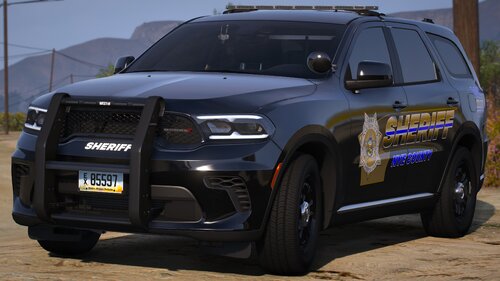
- 427 Downloads
- 3967 Views
- 24.15 MB File Size
- 13 Comments
Updated -
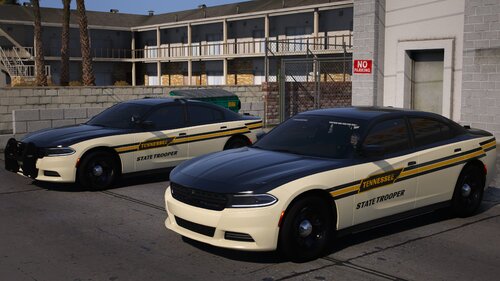
- 370 Downloads
- 3103 Views
- 139.21 MB File Size
- 1 Comments
Updated -
.thumb.jpg.1f0591dda7573e8439684cb56aa8812a.jpg)
- 11,223 Downloads
- 144566 Views
- 405.59 MB File Size
- 28 Comments
Updated -
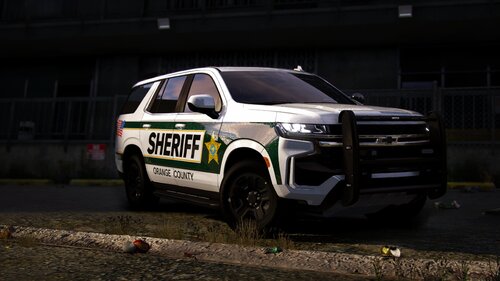 Central Florida based pack with accurate lighting
- 9,700 Downloads
- 80024 Views
- 374.69 MB File Size
- 25 Comments
Updated -
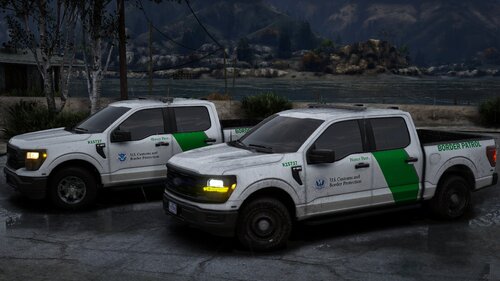
- 4,994 Downloads
- 37306 Views
- 127.71 MB File Size
- 12 Comments
Updated -
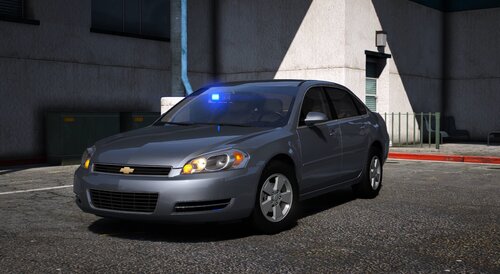
- 10,216 Downloads
- 78442 Views
- 202.26 MB File Size
- 33 Comments
Updated -
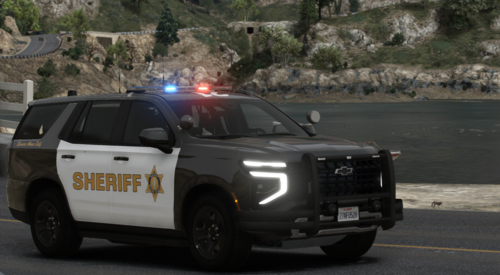
-
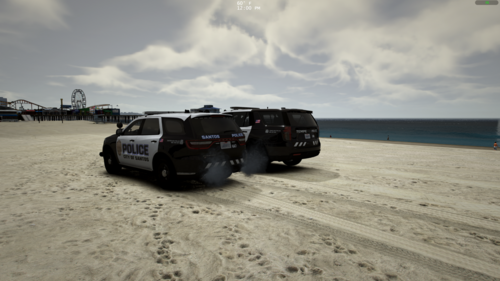 This model is not 100% mirror to iRL agency
- 253 Downloads
- 2520 Views
- 87.34 MB File Size
- 3 Comments
Updated -
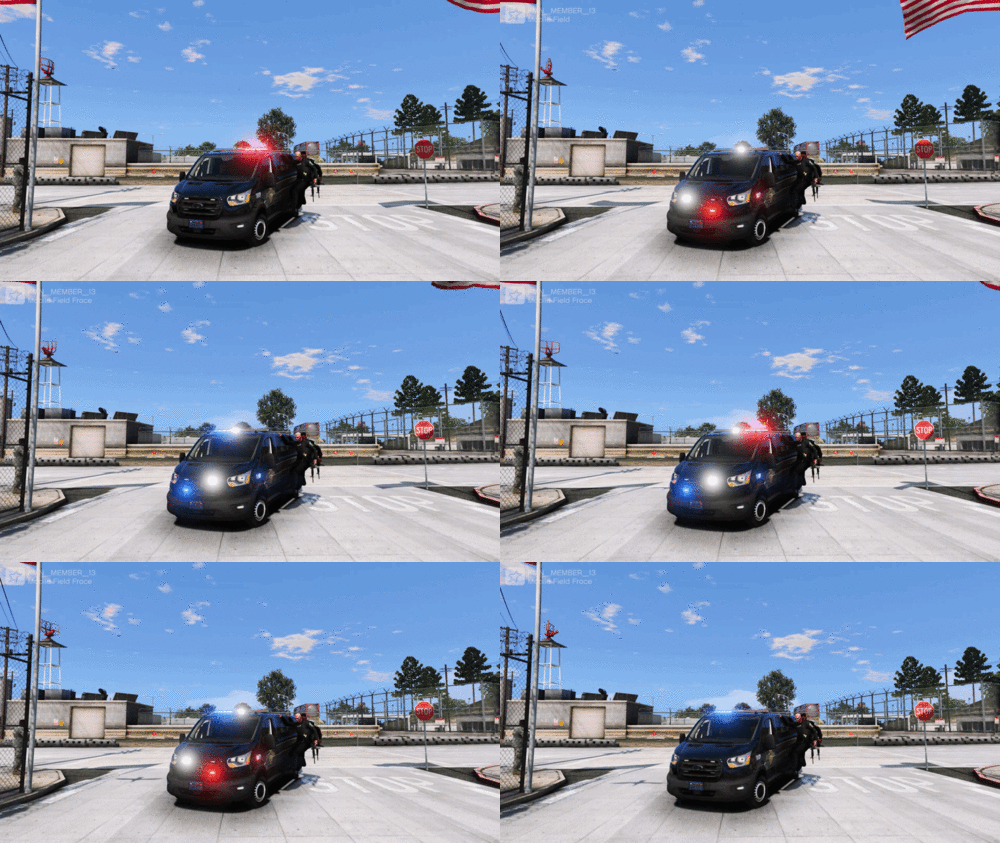 Mobile Field Force Van - 8 Seats - ADDON
- 294 Downloads
- 2579 Views
- 18.12 MB File Size
Updated -
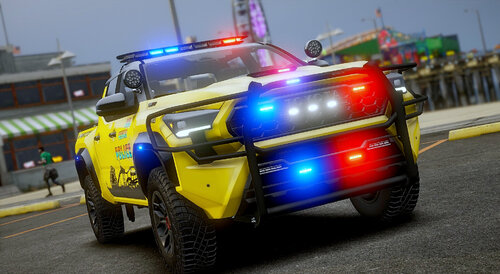 80 plus state wide service vehicle pack
- 57,273 Downloads
- 460285 Views
- 4.15 GB File Size
- 336 Comments
Updated -
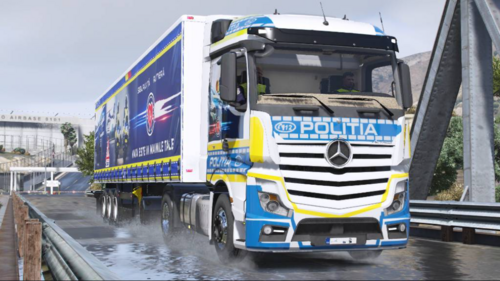 A truck based on traffic education in Romania,on Mercedes-Benz Actros-L from romanian police
- 66 Downloads
- 724 Views
- 27.92 MB File Size
Updated -
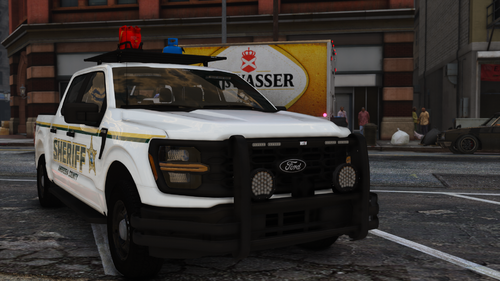
- 67 Downloads
- 1418 Views
- 40.58 MB File Size
- 1 Comments
Updated


.thumb.png.f2b6c5620f07470dda09b19298a75844.png)


.thumb.jpg.1f0591dda7573e8439684cb56aa8812a.jpg)





.png.609b9b423b0cd51685b70c8ac2d38f42.thumb.png.b05a88fbbe34b70608edaba822c395f7.png)