


.png.dede58a633720e3723ede2c7e34ea997.png)
Police Paychecks - New Mod
Howdy! Paychecks is a mod where you can get paychecks for working as a police officer with lspdfr!
LSPDFR IS REQUIRED!
BE SURE TO READ THE READ ME IN THE ZIP FILE!
WHAT NEW:
Money Amount HUD
Paying Bills At Fleeca Bank
WHATS COMING:
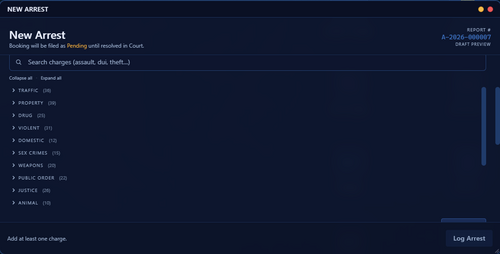
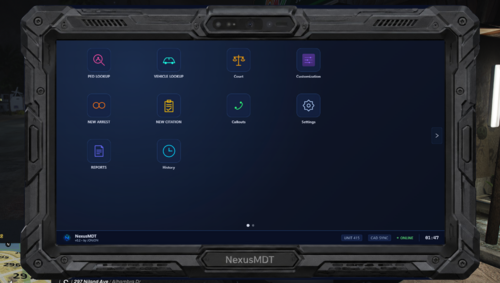
Better UI
Human Developers
MORE FEATURES!
DISCLAIMER:
You need to have all necessary files for LSPDFR.
Edited by SuperPyroManiac
What's New in Version 2.0.0
Released
New Map Blips For Fleeca Bank!
Better Bill Paying Menu!
New Loading UI!
Short Description
A mod to earn paychecks as a police officer!
AI disclosure
The author has disclosed that AI tools were used in creating the following aspects of this file:
- Description
- Images
- Mod and Mod Content (Substantial)
A real human created the idea, while the AI, just created the code.
Zander Craver - Idea Guy
Claude.AI - Main Coder
Zander Craver - Preparing the VS Studio Project
-----------------------------------------------------------
Claude.AI - Main Coder
Zander Craver - Preparing the VS Studio Project
-----------------------------------------------------------

![[EUP] Motorola NMN6250A Style Microphone](http://s3-screenshots.int-cdn.lcpdfrusercontent.com/resize/500/-/monthly_2026_06/20260606165447_1.thumb.jpg.545a0de4fbf49df94327bc254be67390.jpg)

.thumb.png.c63a78958ccc503b417cca7b9fe2b856.png)

.thumb.png.0687db78b4134e317cdafa314a9b9fff.png)
![[HYBRID] Lore Friendly EMS & Police Packs](http://s3-screenshots.int-cdn.lcpdfrusercontent.com/resize/500/-/monthly_2026_03/sentinelp2.thumb.jpg.7432cb7c29427eec7cc7425f7cc5e25a.jpg)

![Blaine County Sheriff's Office EUP Package [ADDON & REPLACE]](http://s3-screenshots.int-cdn.lcpdfrusercontent.com/resize/500/-/monthly_2026_06/Screenshot2026-06-06000350.thumb.png.fe09a5cf104f4c60ed93663b24da91c1.png)

Recommended Comments
I’m new to this mod creation thing! A friend of mine told me to put that there. I’ll be sure to fix it in the next Police Paychecks Update! I’d love to see some feedback from the current mod version, and a few things I should add for improvements.
Recommended by ArmedFrank
Create an account or sign in to comment