




Wildcat Modifications POV System
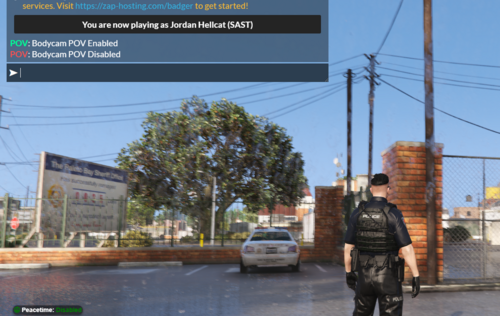
A lightweight standalone FiveM bodycam POV script designed for realistic law enforcement roleplay. Easily toggle immersive first-person bodycam mode using /pov.
Features
Standalone (No ESX/QBCore Required)
Realistic First-Person Bodycam POV
Simple
/povToggle CommandLightweight & Optimized
Smooth Camera Enforcement
Immersive Screen Effects
Easy Installation
RP-Friendly
Commands
/pov— Enable or disable bodycam POV mode
Installation
Drag the resource into your
resourcesfolderAdd
ensure wm_povto yourserver.cfgRestart your server
Credits
Developed by Wildcat Modifications
Support
For support, updates, or custom commissions, contact Wildcat Modifications.
https://cdn.discordapp.com/attachments/1503788601194975293/1503788605724688556/MedalTVGrandTheftAutoVFiveM20260512161423463-trim-1778600055211.mp4?ex=6a049fc6&is=6a034e46&hm=2abc2d50abc88e609939b48198cad5d6371aa9ea65ff2d488c3a4abe0f2d673e&
Edited by Wildcat Modifications
Short Description
AI disclosure
The author has disclosed that AI tools were used in creating the following aspects of this file:
- Description






.thumb.png.a0f80464539c2dd42ee2519c1bda91f2.png)

![San Andreas State Parks 2018 FPIS [HYBRID]](http://s3-screenshots.int-cdn.lcpdfrusercontent.com/resize/500/-/monthly_2026_05/GrandTheftAutoV-01.thumb.png.410c39ac6a12133975e1fe0f636fc1f4.png)


![Los Santos County Sheriff's Office EUP Pack [FiveM & LSPDFR Ready]](http://s3-screenshots.int-cdn.lcpdfrusercontent.com/resize/500/-/monthly_2026_05/Screenshot(362).thumb.png.1c4ef83c5ec20d796ff93960de60c517.png)

Recommended Comments
Create an account or sign in to comment