


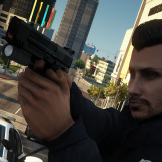


Hello! Thank you for your interest in this file. I recently learned how to replace the default loading screen when you first load the game and wanted something a little more exciting. So I created my own little video for it. A lot of my friends really seem to like it and suggested I upload it for others to enjoy. I have also included a file that removes the loading screen which saves you about 20 seconds of loading time from default GTA if that's more of what you're looking for.
Below is a link to an unlisted yt video of what the new loading screen is.
If anyone has any issues and/or questions please feel free to leave a comment!
Short Description
Custom Loading Screen for LSPDFR
- WastedHorse and NUV3X
-
 2
2



![[EUP] COLP](http://s3-screenshots.int-cdn.lcpdfrusercontent.com/resize/500/-/monthly_2026_05/COL_2.thumb.png.8f6eb8191867522992ea01416d182a80.png)
![[EUP] CBRN](http://s3-screenshots.int-cdn.lcpdfrusercontent.com/resize/500/-/monthly_2026_05/CBRN_2.thumb.png.f03f06680f58ccff02223a2fe99e473b.png)

.thumb.png.bd195e42a078bb7c7f3a1182f03e9694.png)

![[Non-ELS/DLSv2] Generic BMW R1200RT-P [Addon/FiveM]](http://s3-screenshots.int-cdn.lcpdfrusercontent.com/resize/500/-/monthly_2026_05/1.Thumbnail.thumb.png.1755ddcc24711022d8951345c49501b7.png)


![[DLS/Add-on] New York Police Pack](http://s3-screenshots.int-cdn.lcpdfrusercontent.com/resize/500/-/monthly_2026_04/preview.thumb.png.18b807af87cc2bc0f01f1e6156a9ad39.png)
Recommended Comments
Create an account or sign in to comment