





NOTICE 1/2/2020:
And yes I am aware that IPhone 11 came out. But soon, next update. I will be changing this into a IFruit instead of IPhone since this Grand Theft Auto V. Yes I am back and stay tuned.
Thanks for understanding everyone.
Always wanted IPhone x in GTA V? Download this skin to make it come true. It also comes with Attena and non-attena. Also shows Location, time, How much Signal your using Whiz Wireless (4G Sucks.). And also fits the display of service you need to use for. Is been tested and perfectly fits.
INSTALLATION:
Grand Theft Auto V/Plugins/LSPDFR/PoliceSmartRadio/Display
Then Replace it if Windows ask you.
REQUIREMENTS:
Police SmartRadio - The Successor to Police Radio! 1.1.1.1
AVAILABLE:
IPhone X with NO Attena
IPhone X With Attena
COMING SOON:
IPhone 8
Samsung S8 Galaxy
Franklin and Trevor`s Phone Skin.
WARNING: DO NOT COPYRIGHT OR REUPLOAD MY IMAGE WORK.
or else.
Discord: Coming soon
Twitter: @johnmckn10
CREDITS:
johnmckn10 with uploading and editing.
PoliceSmartRadio for display radio skin. to resize IPhone x and edit it.
USED PROGRAMS:
paint.net
Windows 10
Google Images


![Chevrolet Tahoe - Unmarked SUV - [8SEATS] [ELS] [REPLACE]](http://s3-screenshots.int-cdn.lcpdfrusercontent.com/resize/500/-/monthly_2026_06/ezgif-5f6ef3beeba16849.thumb.gif.fb3570093a5f738f115cbd3c9f6409ee.gif)
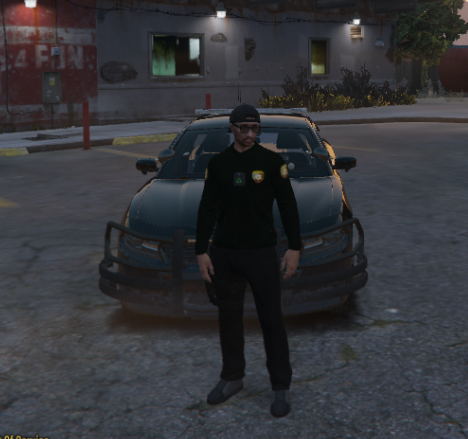
![[DLS] CSP Slicktop and Unmarked 2018 Charger](http://s3-screenshots.int-cdn.lcpdfrusercontent.com/resize/500/-/monthly_2026_06/GrandTheftAutoVScreenshot2026_06.12-10_17_31_97.thumb.jpg.460f74746aae6bb1113450f440bf7b78.jpg)
![1972 WardLafrance Ambassador [DEV]](http://s3-screenshots.int-cdn.lcpdfrusercontent.com/resize/500/-/monthly_2026_06/Ward1.thumb.png.e086b1a7f4f29f4ac1f30e64720beb1f.png)
![[ELS] LSSD Pack (ADDON VERSION) By thegreathah (with permission)](http://s3-screenshots.int-cdn.lcpdfrusercontent.com/resize/500/-/monthly_2026_06/image_2026-06-11_185715261.thumb.png.5d29c68c6724b1ad23ad0294c4301f97.png)



Recommended Comments
Create an account or sign in to comment