





How to install
Step 1. find your GTAV Main Directory
Step 2. Go to GTAV Pathway Shown
Grand Theft Auto V\plugins\LSPDFR\pdComp\assets
Step 3. Find Your State Within your Win Rar or 7-Zip (or how ever you open your files with)
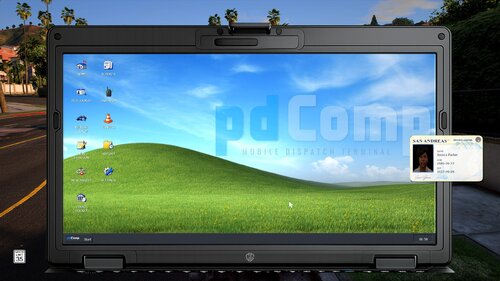
Step 4. Save your Default/Original Driver License that came with Pd-Comp By Cossack Games
Note I Made you a folder to put in your Driver License for the default/original in
Step 5 Delete your Original/Default License From assets Folder
Step 6. After you find your State Driver License Drag and drop into your assets folder
Step 7. Delete the State Name But Leave Driver License Name
Step 8. Run Game and enjoy
Thank you for getting my download you are awesome and don't let anybody tell you
different no matter of age
Speedy101
Edited by Speedy101
Short Description
AI disclosure
The author has disclosed that AI tools were used in creating the following aspects of this file:
- Images
Double Hook
Mexikan
- Justinbee24 and papaleww
-
 2
2


![Riverside Department Pack [ EUP Pack FiveM Ready Replace ]](http://s3-screenshots.int-cdn.lcpdfrusercontent.com/resize/500/-/monthly_2026_10/image1.thumb.png.21ff38790ad75e97e1aff3b367b36fda.png)




.thumb.png.59d05d91e184fd0e413931530914fdf4.png)


![Riverside County Sheriff Office EUP [FiveM Ready Male Only]](http://s3-screenshots.int-cdn.lcpdfrusercontent.com/resize/500/-/monthly_2026_10/image1.thumb.png.610ced849b902200c1e41060ec521220.png)


Recommended Comments
Create an account or sign in to comment