




Name: FDLC Crown Victoria Texture
FDLC texture for Schaefft 08/09 FCV based on the FDNY livery
Includes texture with unit name of 'EMS 4 DIV' and 'Battalion 3'
Note: I am aware that FDNY don't use the Crown Vics as Battalion vechicles, but I thought I would include it anyway.
Recommended model
- Lt.Caine - CVPI-V4.4M ELS-H - http://gtapolicemods.com/downloads.php?do=file&id=361
- Includes all red emerglights.png and emerglights_emis.png for this model.
Screenshots feature CVPI model by
- PoliceWag - FCV 2009 Generic Detective (slicktop) - http://gtapolicemods.com/downloads.php?do=file&id=2533
Reference photos
- http://www.flickr.com/photos/72131699@N00/8064963044/
- http://www.flickr.com/photos/emergency_vehicles/11611167823/
- http://www.flickr.com/photos/emergency_vehicles/11610958325/
===== PLEASE DO NOT EDIT OR REDISTRIBUTE ANY FILES =====
What's New in Version 1.1
Released
- Added a recommended model
- Includes emerglights
Texture: MartyniP
Featured models: Lt.Caine, PoliceWag
Based on: FDNY FCV
Featured models: Lt.Caine, PoliceWag
Based on: FDNY FCV
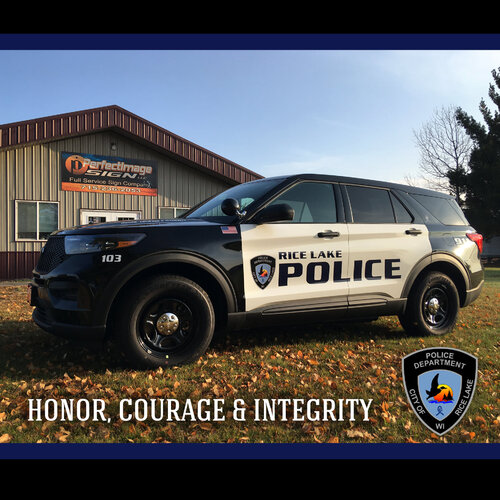


![[NON-ELS] [FiveM] Ocoee, FL 2020 FPIU](http://s3-screenshots.int-cdn.lcpdfrusercontent.com/resize/500/-/monthly_2026_06/Screenshot_2026-06-03_162903.thumb.png.3ac74b70588ed2f59e89c5435ec0f5c5.png)


![Collar Pin Brass Pack [Replace]](http://s3-screenshots.int-cdn.lcpdfrusercontent.com/resize/500/-/monthly_2026_06/image_2026-06-03_152604243.thumb.png.ace2e2c84796c58aeba089f1e24d350e.png)
![Washington State Patrol Campaign Hat [Replace]](http://s3-screenshots.int-cdn.lcpdfrusercontent.com/resize/500/-/monthly_2026_06/image_2026-06-03_150435590.thumb.png.eb642a0be307240999dc566c8d5624c0.png)
![Tennessee Highway Patrol EUP Package [Replace]](http://s3-screenshots.int-cdn.lcpdfrusercontent.com/resize/500/-/monthly_2026_06/image_2026-06-03_111405187.thumb.png.63ffbb896d64b24bdebe086f8c4e3095.png)
Recommended Comments
Create an account or sign in to comment