


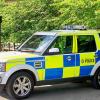


2010 Dodge Charger G.A..N.G Unit
This is my first ever release of a car on LCPDFR so please go easy on me :)
If you want to tell me ways to improve this car please feel free to message me.
Credits:
- Model is original Dodge Charger by EA Games, modified for and converted to GTAIV by Lex91, modified to marked police version by Lt.Caine.
-Wheels made by GerryStudio, Edited & converted for GTA IV by Bxbugs123
Rim textures by Bxbugs123
-GARMIN nuvi GPS Unit Modeled & converted for GTA IV by Bxbugs123
-Lightbars by Bxbugs21 and NickieB and text on lightbar by Ford4ever
-WatchGaurd by Bxbugs123
-Decatur Genesis I Radar Made & Converted by Bxbugs123.Textures By Bxbugs123 & DoTTGaMMa
-Whelen SA314 Series Modeled & converted for GTA IV by Bxbugs123
-Go Rhino Pushbar made & converted by Bxbugs123
-Arma Console by evanscornelius
-Pansasonic Toughpad by Casey 24
-Phantom Max Dashlight by TruamaPak
-Liveries by Sean1010
- Model is original Dodge Charger by EA Games, modified for and converted to GTAIV by Lex91, modified to marked police version by Lt.Caine.
-Wheels made by GerryStudio, Edited & converted for GTA IV by Bxbugs123
Rim textures by Bxbugs123
-GARMIN nuvi GPS Unit Modeled & converted for GTA IV by Bxbugs123
-Lightbars by Bxbugs21 and NickieB and text on lightbar by Ford4ever
-WatchGaurd by Bxbugs123
-Decatur Genesis I Radar Made & Converted by Bxbugs123.Textures By Bxbugs123 & DoTTGaMMa
-Whelen SA314 Series Modeled & converted for GTA IV by Bxbugs123
-Go Rhino Pushbar made & converted by Bxbugs123
-Arma Console by evanscornelius
-Pansasonic Toughpad by Casey 24
-Phantom Max Dashlight by TruamaPak
-Liveries by Sean1010


![[NON-ELS] [FiveM] Ocoee, FL 2020 FPIU](http://s3-screenshots.int-cdn.lcpdfrusercontent.com/resize/500/-/monthly_2026_06/Screenshot_2026-06-03_162903.thumb.png.3ac74b70588ed2f59e89c5435ec0f5c5.png)



![Collar Pin Brass Pack [Replace]](http://s3-screenshots.int-cdn.lcpdfrusercontent.com/resize/500/-/monthly_2026_06/image_2026-06-03_152604243.thumb.png.ace2e2c84796c58aeba089f1e24d350e.png)
![Washington State Patrol Campaign Hat [Replace]](http://s3-screenshots.int-cdn.lcpdfrusercontent.com/resize/500/-/monthly_2026_06/image_2026-06-03_150435590.thumb.png.eb642a0be307240999dc566c8d5624c0.png)
Recommended Comments
Create an account or sign in to comment