Skip to content
View in the app

A better way to browse. Learn more.

LCPDFR.com

A full-screen app on your home screen with push notifications, badges and more.

To install this app on iOS and iPadOS
  1. Tap the Share icon in Safari
  2. Scroll the menu and tap Add to Home Screen.
  3. Tap Add in the top-right corner.
To install this app on Android
  1. Tap the 3-dot menu (⋮) in the top-right corner of the browser.
  2. Tap Add to Home screen or Install app.
  3. Confirm by tapping Install.

412moneybagzz

Members
  • Joined

  • Last visited

Everything posted by 412moneybagzz

  1. okay im not a noobie, but i had to do a reinstall of my game and now i cant remember what my mods folder is supposed to look like to stop the game from automatic updating this is very annoying and none of my modded cars are showing up only vanilla. can someone please show me a screenshot or be very specific on how to get my cars working and my game to stop updating, i don't really care about spelling right now. i just need help thanks. ps my whole game and all files are up to date with current rage, script, and disk
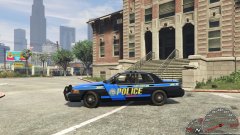
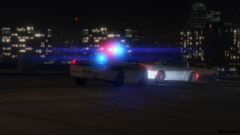
  2. 412moneybagzz posted a gallery image in GTA V Galleries
  3. 412moneybagzz posted a gallery image in GTA V Galleries
  4. 412moneybagzz posted a gallery image in GTA V Galleries
  5. 412moneybagzz posted a gallery image in GTA V Galleries

Account

Navigation

Search

Search

Configure browser push notifications

Chrome (Android)
  1. Tap the lock icon next to the address bar.
  2. Tap Permissions → Notifications.
  3. Adjust your preference.
Chrome (Desktop)
  1. Click the padlock icon in the address bar.
  2. Select Site settings.
  3. Find Notifications and adjust your preference.