


conman24
Members
-
Joined
-
Last visited
-
 rabbit1988 reacted to a post in a topic:
Vehicle Textures Not Transferring Over in OpenIV: UPDATED W/ Screenshots
rabbit1988 reacted to a post in a topic:
Vehicle Textures Not Transferring Over in OpenIV: UPDATED W/ Screenshots
-
Sorry about that 😕 didn't know that was a rule. That seems to have solved my issue. I really appreciate it.
-
Bump
-
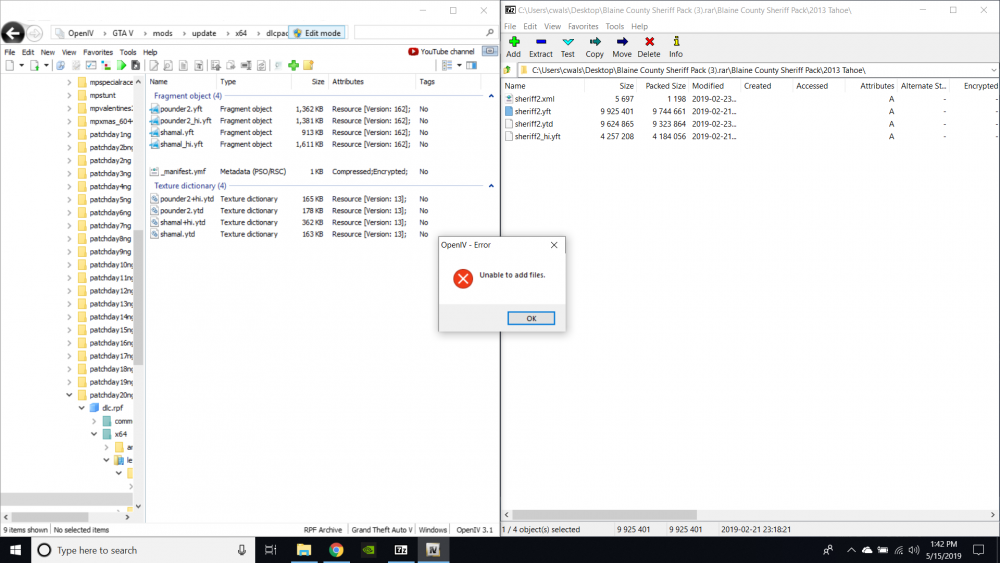
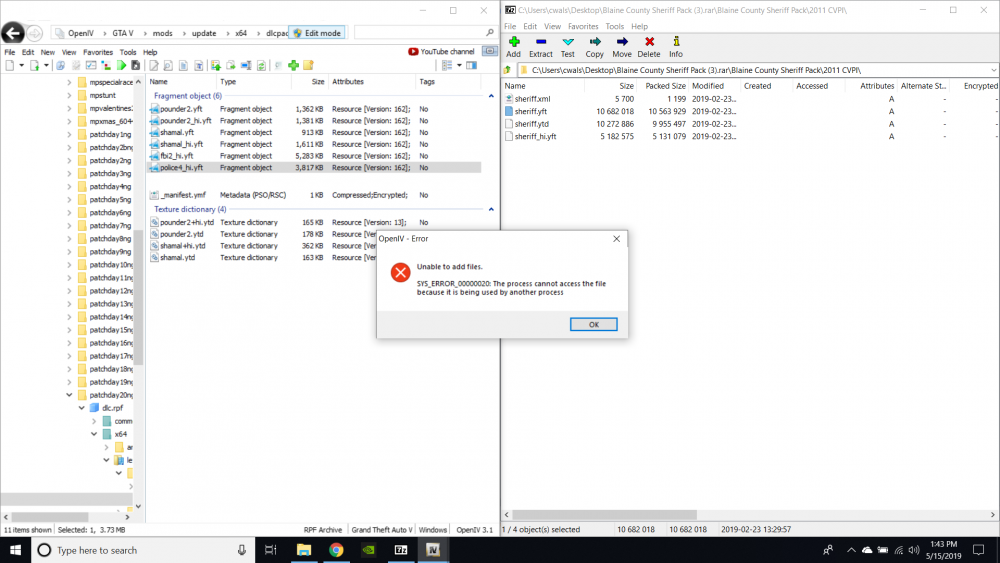
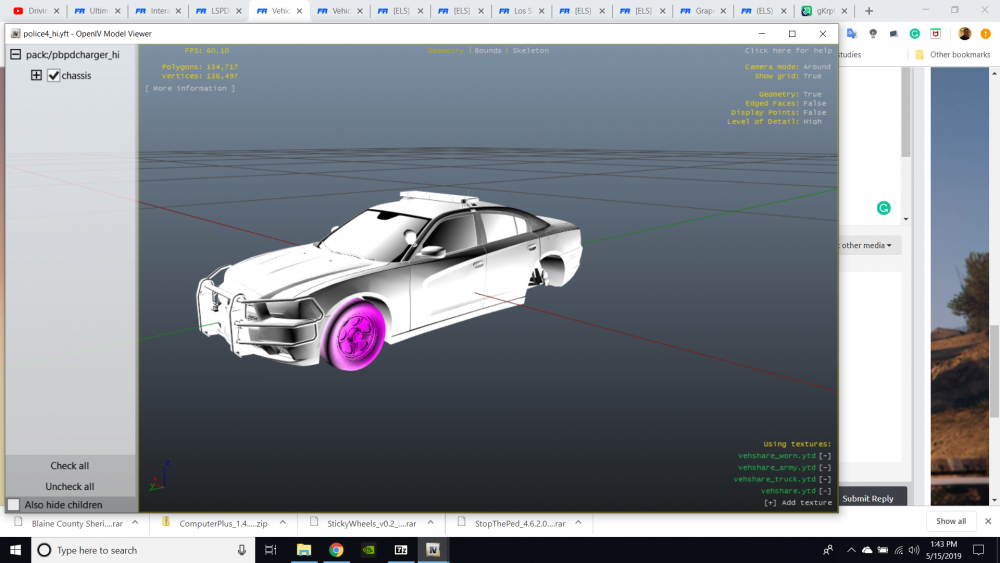
Roger that haha. Working on a screenshot now. Stand by. I included images of the two error messages thrown and a screenshot showing that textures aren't moving over properly. I included both error messages and a screenshot showing that the textures aren't moving over properly.
-
All, When I am attempting to load a vehicle pack, the vehicle textures are not transferring properly into OpenIV. I get an error message from OpenIV. I have tried two different methods, the first one wherein I go to the latest patchday (in this case, 20), which I was told should override the existing vehicle pack, and the second method of transferring the pack and into the patchday where the files for the actual vehicles are to attempt to replace them directly. Neither method works and OpenIV throws an error both times. Any advice is appreciated.
-
UPDATE I deleted and reinstalled EUP and EUP Menu and it seems to be working now. Now...to attempt to install some vehicle packs. Wish me luck haha.
-
UPDATE: I deleted and reinstalled Smart Police Radio and the buttons seemed to configure correctly this time. But now my EUP menu won't open when I press F11. I am having myriad issues right now haha. I've included the text file.
-
All, Second time here today. Need help again lol. I have been trying to get this straight for the last three days and I'm just at my wits end. LSPDFR is now crashing every time I run it. Began happening after I set up my Police Smart Radio. Any advice is appreciated.
-
Learn something new every day. Every install guide I can find basically state that a trainer is absolutely necessary to run the game. Thanks for the tip.
-
Interesting. Would you recommend Native Trainer instead? This is the first I'm hearing of problems with Simple Trainer.
-
-
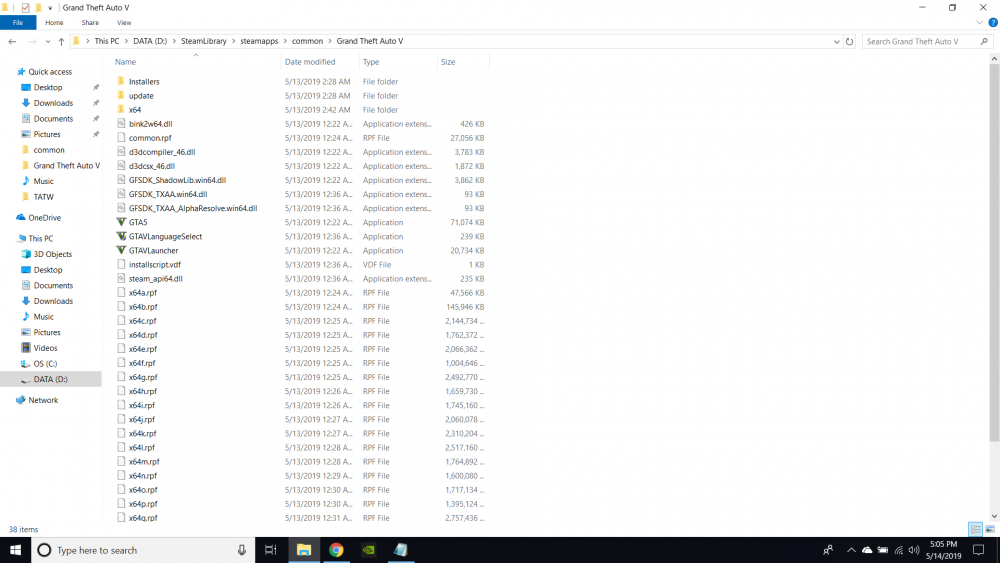
Fail on my part. I modded a copy of the game that I moved to the desktop for easier access. Thanks. Operator error for sure.
-
Apologies.
-
Help me out here. I don't see a text file named RagePluginHook in the GTA5 folder. I see a config file named RagePluginHook and a text file named RPH_Readme. The config file states [Miscellaneous] DisableRenderVersionText=True PluginTimeoutThreshold=10000 [Variables] IsDeveloperModeEnabled=False ConsoleKey=F4All, I followed instructions for LSPDFR install word for word from Benzo's youtube channel. Installed LSPDFR, Script Hook 5, Latest Rage Plugin, and Simple Trainer all on a fresh and clean install of GTA5. Already knew about the issue where the game wouldn't hook initially, so I selected Force Windowed Mode and Force DirectX 11, and still the plugin will not hook and it sends me to regular GTA5. I am relatively new to modding, but the instructions seemed simple enough to follow for most everyone. Any advice is appreciated. Thanks,


