xxkcolexx
Members
-
Joined
-
Last visited
Everything posted by xxkcolexx
-
-
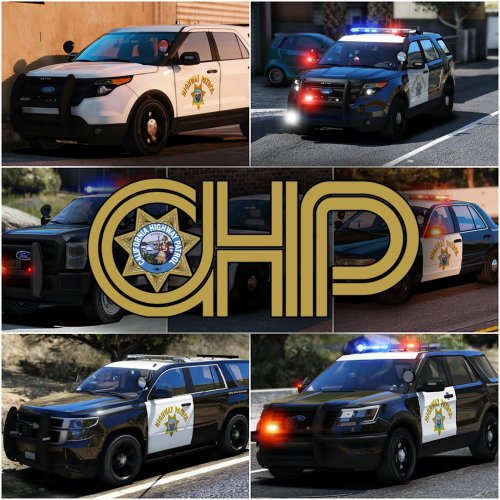
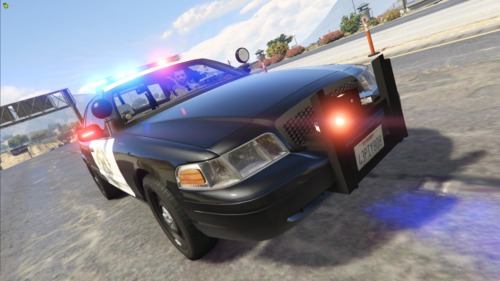 Overall great CHP pack with a good selection of vehicles. Only a couple of minor issues the biggest one I noticed was the light modules on one of the bikes move with the handlebars. Other than that the light pattern is near perfect only issue vs real CHP is stage 3 is a little too fast, and stage 2 only the left blue module should be lit with TA. Overall Great pack I will defiantly be keeping this in my game for a while.
- 103 comments
- 4 reviews
-
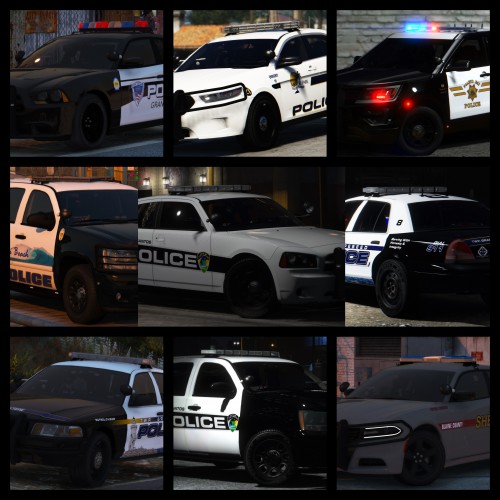 Using Albo's Modding DLC pack I added the vehicle's - did not replace any slots. https://www.lcpdfr.com/files/file/15317-modding-dlc-pack-v/
- 95 comments
- 32 reviews
-
Not sure what you mean by "that drag and replace" I added the vehicles, not replaced, however I did solve the issue. The 3 Paleto Bay vehicle files do not contain textures, when searching in openIV there are no XXX_sign_X Files. It seems the textures are somehow linked to the .ytf file not the .ytd file. To solve this I removed the flag: FLAG_HAS_LIVERY in the meta file. I don't know how vehicle modeling works so I have no idea why this is or how it works.
- 95 comments
- 32 reviews
-
not sure what I did wrong however on the 3 Paleto Bay vehicles, they spawn with no texture. When looking in the trainer it says file name not found.
- 95 comments
- 32 reviews
-
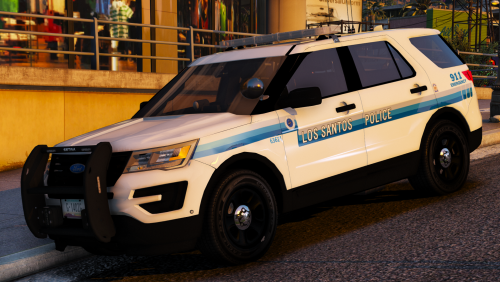 absolutely amazing, I've been waiting for someone to make Scottsdale PD skins and you did not dissapoint
- 4 comments
- 9 reviews
-
-

- 1
-
-
@LowRid3R I am having the same problem as @YaboyMcGrats here is my log file