Dvdrummer360
Members
-
Joined
-
Last visited
Files posted by Dvdrummer360
-
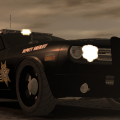
| 2010 DODGE CHALLENGER - LIBERTY COUNTY SHERIFF'S DEPARTMENT |
The uploader (Dvdrummer360) takes no credit for the vehicle model or texture. The Sheriff's Department skin was made by taximan5, uploaded to gta4-mods.com by THED. The 2010 Dodge Challenger vehicle model is credited to Yakadafi, uploaded to LCPDFR.com by magicmann. My only part in the making of this vehicle was combining the Sheriff's Department texture with the vehicle model and uploading them as a single download to LCPDFR.com.
This vehicle is exclusive to LCPDFR.com and may not be distributed or reuploaded to any other website without explicit permission from Dvdrummer360, taximan5, or Yakadafi.
| HOW TO INSTALL |
1. Extract the vehicle files (noose.wtd and noose.wft) to your desktop.
2. Open SparkIV or OpenIV.
3. Navigate to pc/models/cdimages/vehicles.img in SparkIV or OpenIV.
4. Find noose.wft and noose.wtd (or whatever you named the files)
5. Highlight both files and click Import.
6. Navigate to the downloaded files and import them.
7. Save and rebuild.
8. Done!
------------------------------------------------------------------------------------------------------------------------
This is my first file ever uploaded to LCPDFR.com! I hope you enjoy, and leave feedback below!
- 984 Downloads
- 18 Comments
Updated