


Caine
Members
-
Joined
-
Last visited
Everything posted by Caine
-
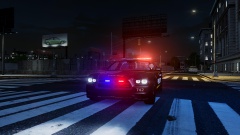
From the album: Random Model Pics / W.I.P's
Tell me what ya' think! -
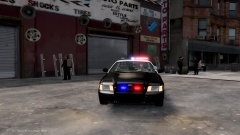 Currently unreleased due to LCPDFR upload issues, but stay tuned!
 -
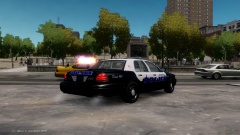
From the album: Random Model Pics / W.I.P's
Tell me what ya' think! -
From the album: Random Model Pics / W.I.P's
Tell me what ya' think! -
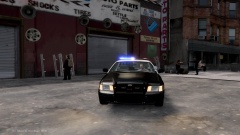
From the album: Random Model Pics / W.I.P's
Tell me what ya' think! -
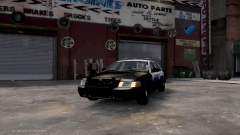
From the album: Random Model Pics / W.I.P's
Tell me what ya' think! -

From the album: Random Model Pics / W.I.P's
Tell me what you think! *Skins by NicolaiB but, not going to be released with them* -
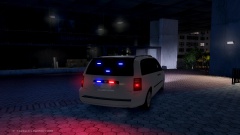
From the album: Random Model Pics / W.I.P's
Tell me what you think! *Skins by NicolaiB but, not going to be released with them* -
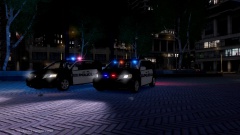
From the album: Random Model Pics / W.I.P's
Tell me what you think! *Skins by NicolaiB but, not going to be released with them* -
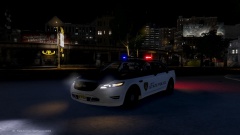 Nahh it wasn't your fault, it was mine :)
 -
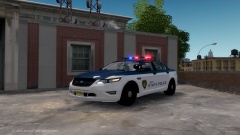 I know this isn't a 2013. The design is totally different in the bumpers.
 -
I know who he is, lol it was a joke between us I talk to him all the time IRL. Srry for the miscommunication :)
-
Please leave my posts, your comments are not appreciated. :) lol
-
From the album: Random Model Pics / W.I.P's
Please leave a comment about what you think! -
Yea it has all of the FPI equipment. I doesnt have the regular Taurus equip. Yea I will soon! Thanks alot!
-
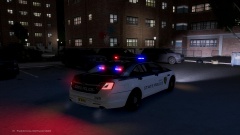
From the album: Random Model Pics / W.I.P's
Please Leave comments on what you think! :) -

From the album: Random Model Pics / W.I.P's
Please Leave comments on what you think! :) -
From the album: Random Model Pics / W.I.P's
Please Leave comments on what you think! :) -
-
Thanks alot, I appreciate it!
-
Here's my second vehicle that I will be releasing sooner than later. I hope you enjoy! If you have any comments/suggestions fell free to leave them down below! Thanks YouTube Video - https://www.youtube.com/watch?v=BwxruV3dVAs&list=UUsWrwpwRoG4rvZ1Q8qYzbeQ
-
-
Alright, thanks alot
-
Trust me I would but, the thing is idk how.
-
I usually use Adobe Premiere CC, and like the person above said I usually render and encode.export in the 1080p 30 FPS, which gives 1080p. I believe 60 FPS in premiere is 480 or 720p. So if u have an option to export/encode at 30 FPS, try that. :)

