


JarheaDx38
Members
-
Joined
-
Last visited
Everything posted by JarheaDx38
-
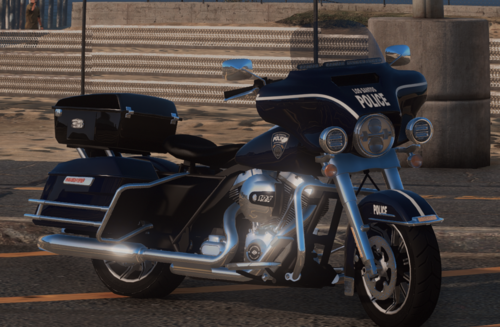 Ok thanks it works, but not at 100%... 98% of the texture is coming from Harley_sign_2 as you suggested BUT the top case cover is coming from Harley_sign_1. So, you need 2 textures Harley_sign_1 and Harley_sign_2 inside the policeb.ytd file to have a complete paint job 🙂 Of course both of them have to be the same png file... To be more explicit : Only Harley_Sign_1 : Only Harley_Sign_2 : With both : Does anyone knows how to fix that ? Is there an text file to modify ? This must be done with Zmodeler ?
 -
-
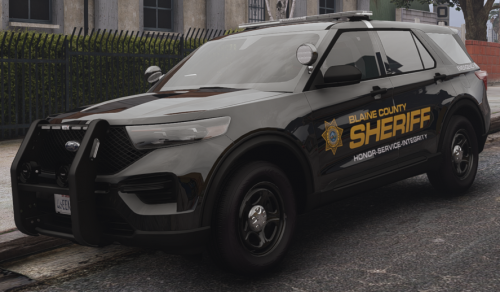 Yup, these two entries already have been deleted as mentionned in the readme file (so I havn't these car ingame because they should be replaced with the modded)
- 200 comments
- 16 reviews
-
Hi ! I'm a bit confused cause I've followed all the steps but it seems my dlc folder is not loading well. I've checked the dlclist.xml couple of times and everything seems good... Asiloader is OK + OpenIV.asi is working well... I'm sure the problem is coming from me cause the pack seems working for you, but I can't find where... Edit : I've found on setup2.xml <deviceName>dlc_bcso</deviceName> shouldn't it be following cause the folder name is only bsco ? <deviceName>bcso</deviceName> Another question, all my mods are in the "mods" folder : do I have to modify something on your files to make it works properly ?
- 200 comments
- 16 reviews

