Jonny9998
Members
-
Joined
-
Last visited
Everything posted by Jonny9998
-
-
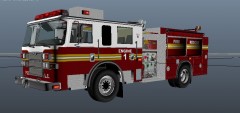 Here it is
 -
-
 Yes that is it
 -
From the album: Jonny9998's Pics
-
-
From the album: Jonny9998's Pics
-
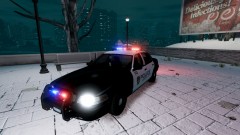 No Prob dude.
 -
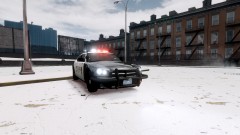
Here is the Model And the Texture I use is off the CVPI from this pack And Yes it is Snow mod 2.0.
-
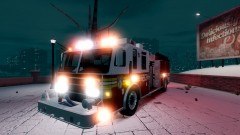
From the album: Jonny9998's Pics
-
From the album: Jonny9998's Pics
-
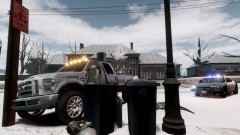
From the album: Jonny9998's Pics
-
-
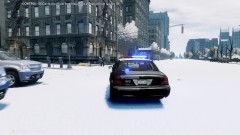 Thank you so much, Here is the Model And the Texture I use is off the CVPI from this pack
 -
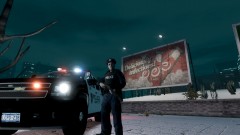
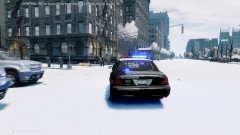 Sorry didn't mean to upload it to this album. A custom ENB I configured.
 -
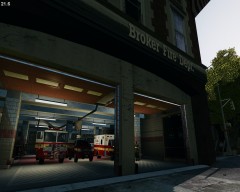
From the album: Jonny9998's Pics
-
From the album: Jonny9998's Pics
-
From the album: Jonny9998's Pics
-
You don't know how long I've been doing that haha.
-
Yeah I know its something to do with that, Just need to Object ID
-
Yeah, Searched everywhere for it, No luck..
-
I know where the fire station is. Just want to know what the Object id is for the moving door?
-
Does anyone know where I can find the door that goes with the fire station?.As seen in this video. Skip to 4:52 http://www.youtube.com/watch?v=B_UzzCpfRh4