James3000117
Members
-
Joined
-
Last visited
Files posted by James3000117
-
Made in response to this request:
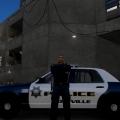
The skin is an accurate rendition of the Roseville Police Department CVPI's used in Cali today. Permission is required to modify this skin for anything other than personal use. The skin may not be uploaded without permission. The skin was entirely made by me, using the template included in Cj24's CVPI, linked in the .rar file. This skin has only been tested for use with the model linked in the.rar file. Useage with other models is at your own risk. This skin contains 4 liveries, each with different unit numbers. +livery must be enabled in vehicles.ide for this feature to work. Further installation instructions can be found in the readme.
The skin is designed to work with this model:
- 52 Downloads
- 3 Comments
Submitted -
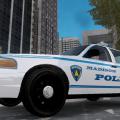
This is a skin for Cj24's Halifax Regional Police CVPI, which can be downloaded here:
The skin is an accurate rendition of the Madison Police Department CVPI's used in Wisconsin today. Permission is required to modify this skin for anything other than personal use. The skin may not be uploaded without permission. The skin was entirely made by me, using the template included in Cj24's CVPI, linked above. This skin is only intended for use with that vehicle. This skin contains 4 liveries, each with different unit numbers. +livery must be enabled in vehicles.ide for this feature to work.
(model is not included in download, linked above)
- 49 Downloads
- 4 Comments
Updated