



Horseman
-
Joined
-
Last visited
Everything posted by Horseman
-
From the album: Horsemans Screenshots
© Horseman 2018
-

From the album: Horsemans Screenshots
© Horseman 2018
-

From the album: Horsemans Screenshots
© Horseman 2018
-
From the album: Horsemans Screenshots
© Horseman 2018
-
From the album: Horsemans Screenshots
© Horseman 2018
-

From the album: Horsemans Screenshots
© Horseman 2018
-

From the album: Horsemans Screenshots
© Horseman 2018
-
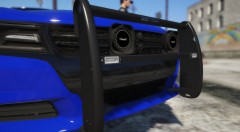
From the album: Horsemans Screenshots
© Horseman 2018
-
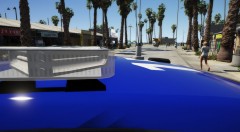
From the album: Horsemans Screenshots
© Horseman 2018
-
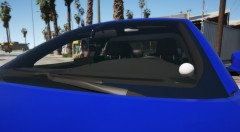
From the album: Horsemans Screenshots
© Horseman 2018
-
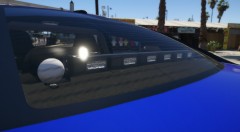
From the album: Horsemans Screenshots
© Horseman 2018
-
From the album: Horsemans Screenshots
© Horseman 2018
-
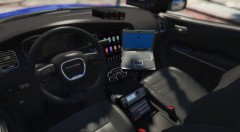
From the album: Horsemans Screenshots
© Horseman 2018
-

From the album: Horsemans Screenshots
© Horseman 2018
-

From the album: Horsemans Screenshots
© Horseman 2018
-

From the album: Horsemans Screenshots
© Horseman 2018
-

From the album: Horsemans Screenshots
© Horseman 2018


