1997chevyboy
Members
-
Joined
-
Last visited
Everything posted by 1997chevyboy
-
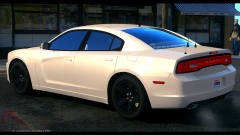
From the album: W.I.P
Fixed the reflection on the rims to be matte black, thanks XBR410! This will be released soon! -
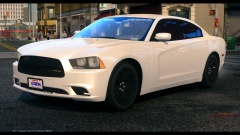
From the album: W.I.P
Fixed the reflection on the rims to be matte black, thanks XBR410! This will be released soon! -
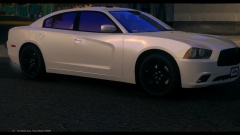
From the album: W.I.P
Fixed the reflection on the rims to be matte black, thanks XBR410! This will be released soon! -
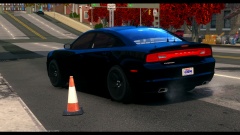
From the album: W.I.P
Fixed the reflection on the rims to be matte black, thanks XBR410! This will be released soon! -
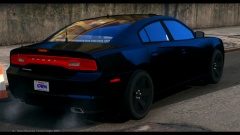
From the album: W.I.P
Fixed the reflection on the rims to be matte black, thanks XBR410! This will be released soon! -
-
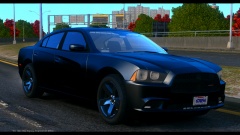 LOL, Tomorrow you will have yours!
 -
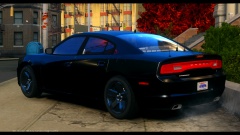 Thanks alot man, ima fix them asap!
 -
Thanks man, im adding the video to the pics now!
-
From the album: W.I.P
Still a W.I.P. and may be released when im finished! -
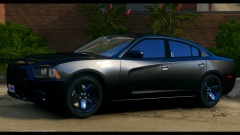
From the album: W.I.P
Still a W.I.P. and may be released when im finished! -
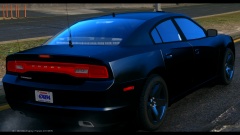
From the album: W.I.P
Still a W.I.P. and may be released when im finished! -
From the album: W.I.P
Still a W.I.P. and may be released when im finished! -
Awesome car man! 5/5 The only things i think should be fixed are 1- your wraparound on your pushbar should be retextured bc there are little white lines that run along the tops and bottoms of the bars and 2- This is a personal opinion but i think it would look much better if you removed or made the tint around your light modules
- 12 comments
- 2 reviews
-
 Fresh Off The Boat!
 -
Thanks alot man im glad you like it, as i already knew some wouldnt! I can make a slicktop cvpi with this lighting setup, i just
- 9 comments
- 3 reviews
-
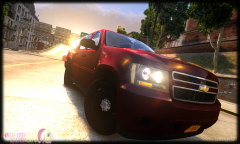 WOW! Amazing work.
 -
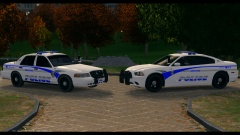
From the album: Final W.I.P's
RELEASED - https://www.lcpdfr.c...charger-els-v8/ -
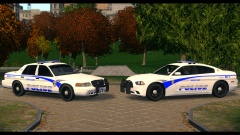
From the album: Final W.I.P's
RELEASED - https://www.lcpdfr.c...charger-els-v8/ -
-
-
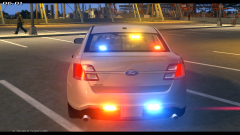
MERRY CHRISTMAS EVERYONE These are two models out of a pack im working on. They are based on my local sheriff departments lighting setup! Both models feature a swiveling laptop keyboard, to be able to use this feature you must have ELS V-8 and use the ELS.ini that comes with the model. Also the cvpi has a ELS mapped control box and a random spawning wraparound. Enjoy https://www.youtube.com/watch?v=zBnWiZocu_0 https://www.youtube.com/watch?v=Ek9BLf_lRiY
- 9 comments
- 3 reviews
-
 Bring Dat Ass Here Boi!
 -
 Awesome idea!
 -
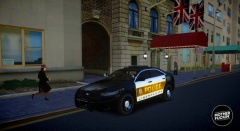 Damn man awesome car!