
pilo88
-
Joined
-
Last visited
Everything posted by pilo88
-
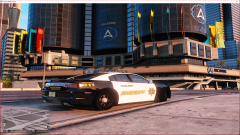
From the album: Paterson New Jersey PD, FD, Passaic County Sheriff/Other
-
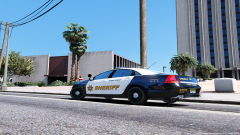
From the album: Paterson New Jersey PD, FD, Passaic County Sheriff/Other
-
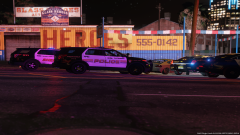
From the album: Paterson New Jersey PD, FD, Passaic County Sheriff/Other
-
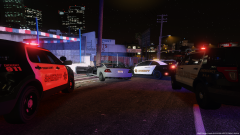
From the album: Paterson New Jersey PD, FD, Passaic County Sheriff/Other
-
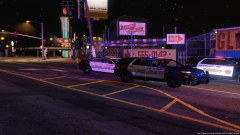
From the album: Paterson New Jersey PD, FD, Passaic County Sheriff/Other
-
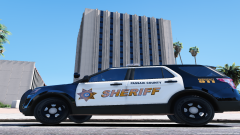
From the album: Paterson New Jersey PD, FD, Passaic County Sheriff/Other
Added black shadow to the lettering -
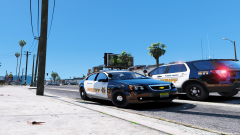
From the album: Paterson New Jersey PD, FD, Passaic County Sheriff/Other
-
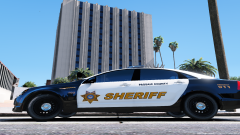
From the album: Paterson New Jersey PD, FD, Passaic County Sheriff/Other
-
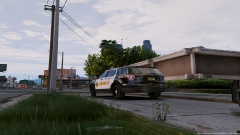
From the album: Paterson New Jersey PD, FD, Passaic County Sheriff/Other
-
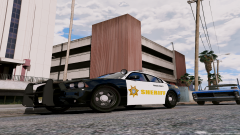
From the album: Paterson New Jersey PD, FD, Passaic County Sheriff/Other
-
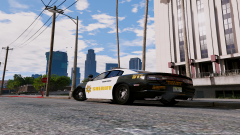
From the album: Paterson New Jersey PD, FD, Passaic County Sheriff/Other
Passaic County Sheriff skins I made for the Charger and Explorer -
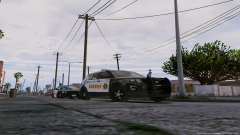
From the album: Paterson New Jersey PD, FD, Passaic County Sheriff/Other
Passaic County Sheriff skins I made for the Charger and Explorer -
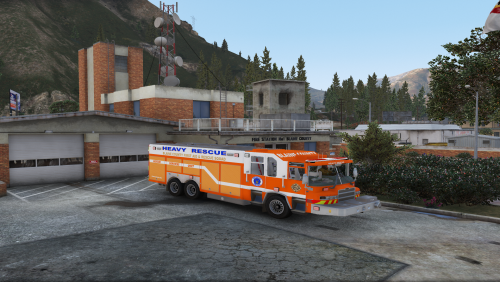 Here is a Blaine County Rescue Truck texture for Zach Plays Pierce Quantum based off a rescue truck here in New Jersey.
 -
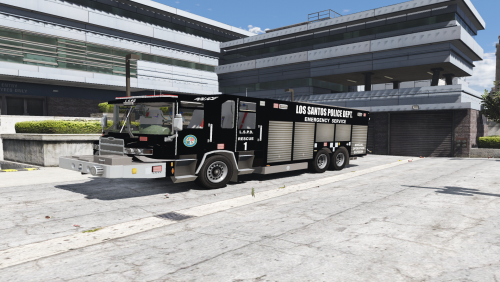 Thank you for your feedback. I appreciate it, will definitely make note of that and maybe update it and add a "Emergency Service Unit" Texture also. Replace the .dds file with Rescue_sign_1
- 6 comments
- 1 review
-
-

- 1
-
-
Sorry for any confusion can you please tell me what file is not included so I could fix the problem as soon as possible. The texture file is (Download>LSPDR1.dds) in the folder along with a Readme and screenshots folder
- 6 comments
- 1 review
-
-
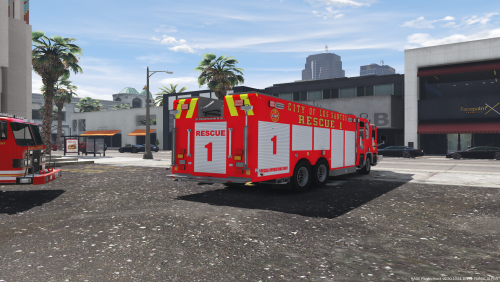 LSFD Rescue 1 skin texture for the Pierce Quantum Rescue by ZACH PLAYS Includes 3 skins Base, Thin Blue Line as you see in the screenshots and Thin Red Line.
 -
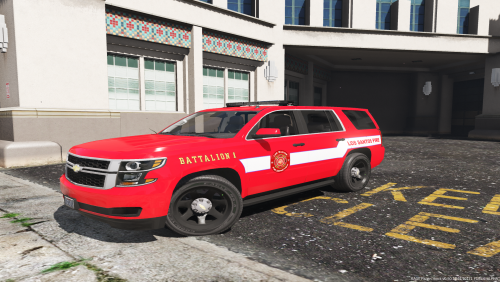 This is my first upload to LSPDFR. Here is a LSFD Battalion 1 I made for Maurice97 2015 Tahoe. http://www.lcpdfr.com/files/file/14150-2015-tahoe-els/ I'm not the best at making textures but I try my best. I make plenty of skins but for personal use only which I'm happy with. Hope you enjoy this Battalion 1 texture.
 -
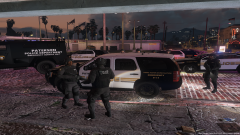
From the album: Paterson New Jersey PD, FD, Passaic County Sheriff/Other
-
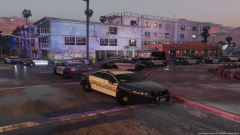
From the album: Paterson New Jersey PD, FD, Passaic County Sheriff/Other
-
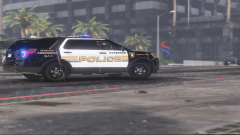
From the album: Paterson New Jersey PD, FD, Passaic County Sheriff/Other
-
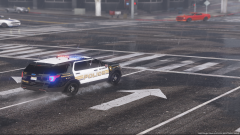
From the album: Paterson New Jersey PD, FD, Passaic County Sheriff/Other
-
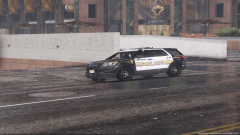
From the album: Paterson New Jersey PD, FD, Passaic County Sheriff/Other
-
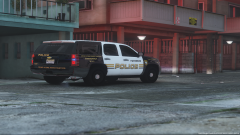
From the album: Paterson New Jersey PD, FD, Passaic County Sheriff/Other
-
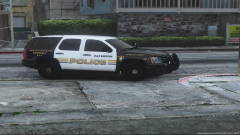
From the album: Paterson New Jersey PD, FD, Passaic County Sheriff/Other