


Officer.Bryan.O'connor
-
Joined
-
Last visited
File Comments posted by Officer.Bryan.O'connor
-
-
-
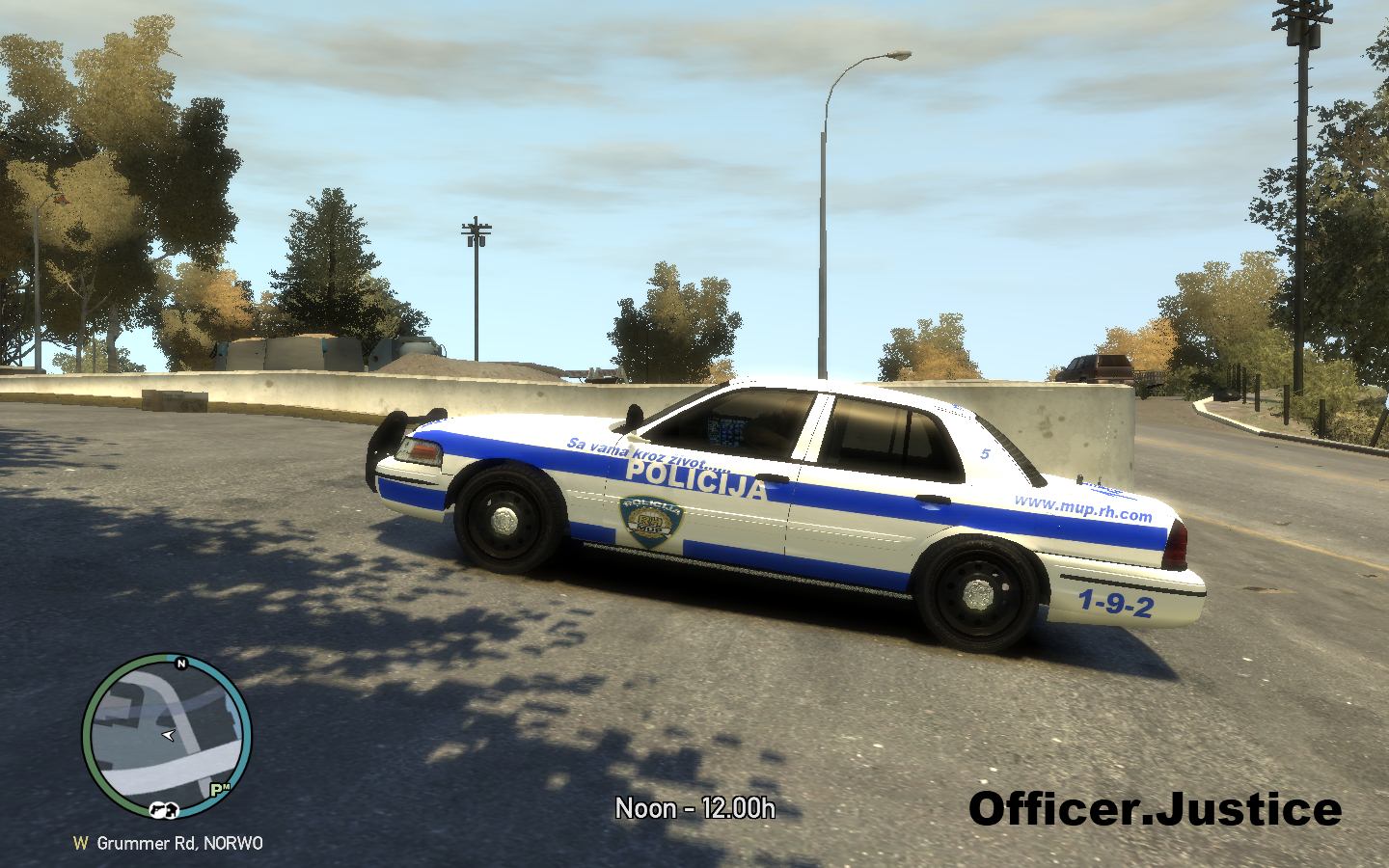
I'm from Croatia This is soo bad skin!
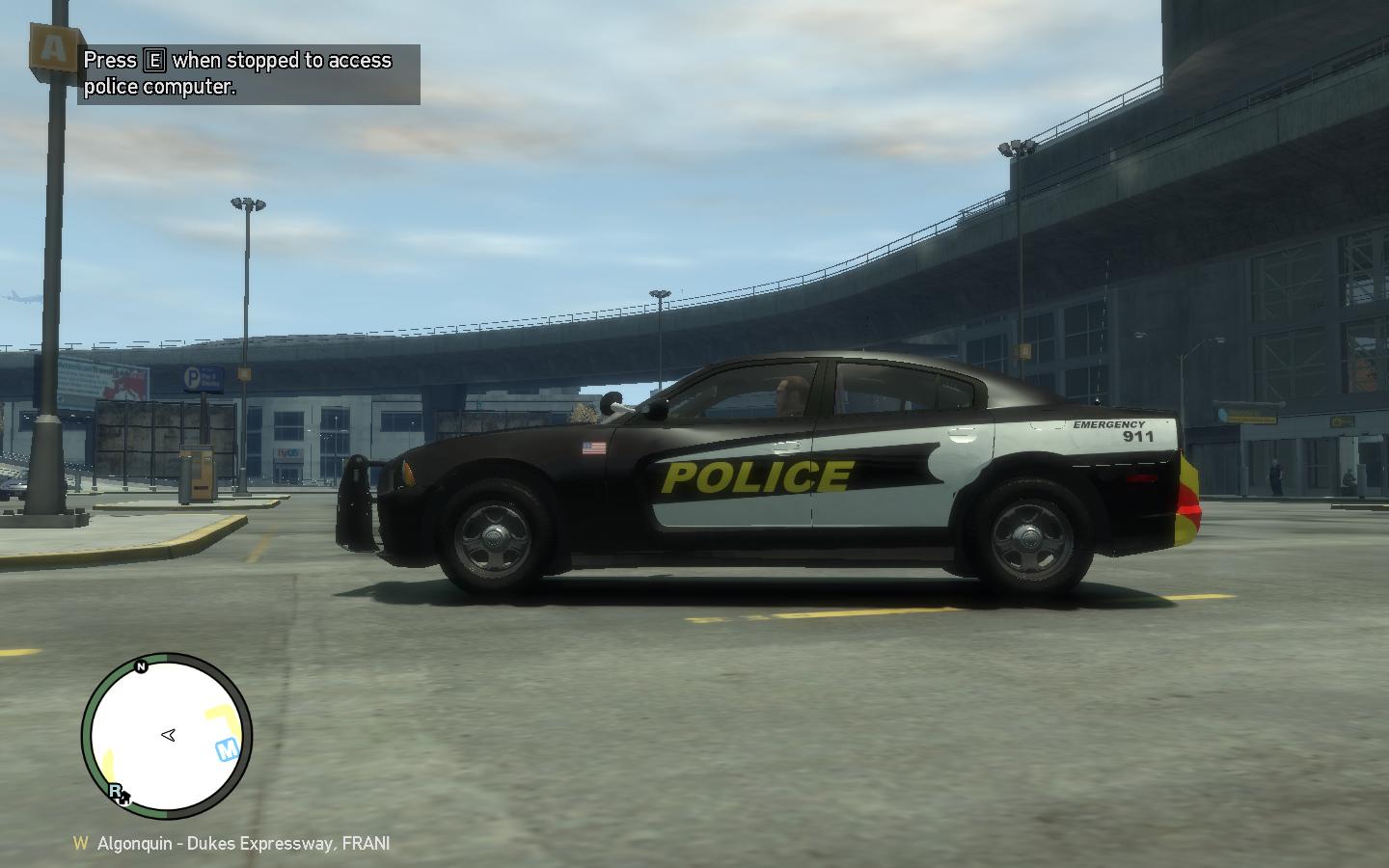
Looks shockingly similar to this:
The colors are too bright in my opinion. Tone both the green and blue down to a darker shade and it would look better. Also, Arial is good in some instances, but try adding some variety in your fonts. Here's a good thread for font ideas:
Try to make the skins more realistic. Check out the tutorials on this website to help you get nice fonts and lines to make it look more realistic. Trust me I started out like this but I never released skins because they were on paint. If you are using paint, I wouldn't really make skins on it. It looks alittle kiddish to be honest. If you can get your hands on photoshop or gimp, use those they look more professional. I wish you the best.
I use Pait.net and GIMP
Here are a few tips off of first glance:
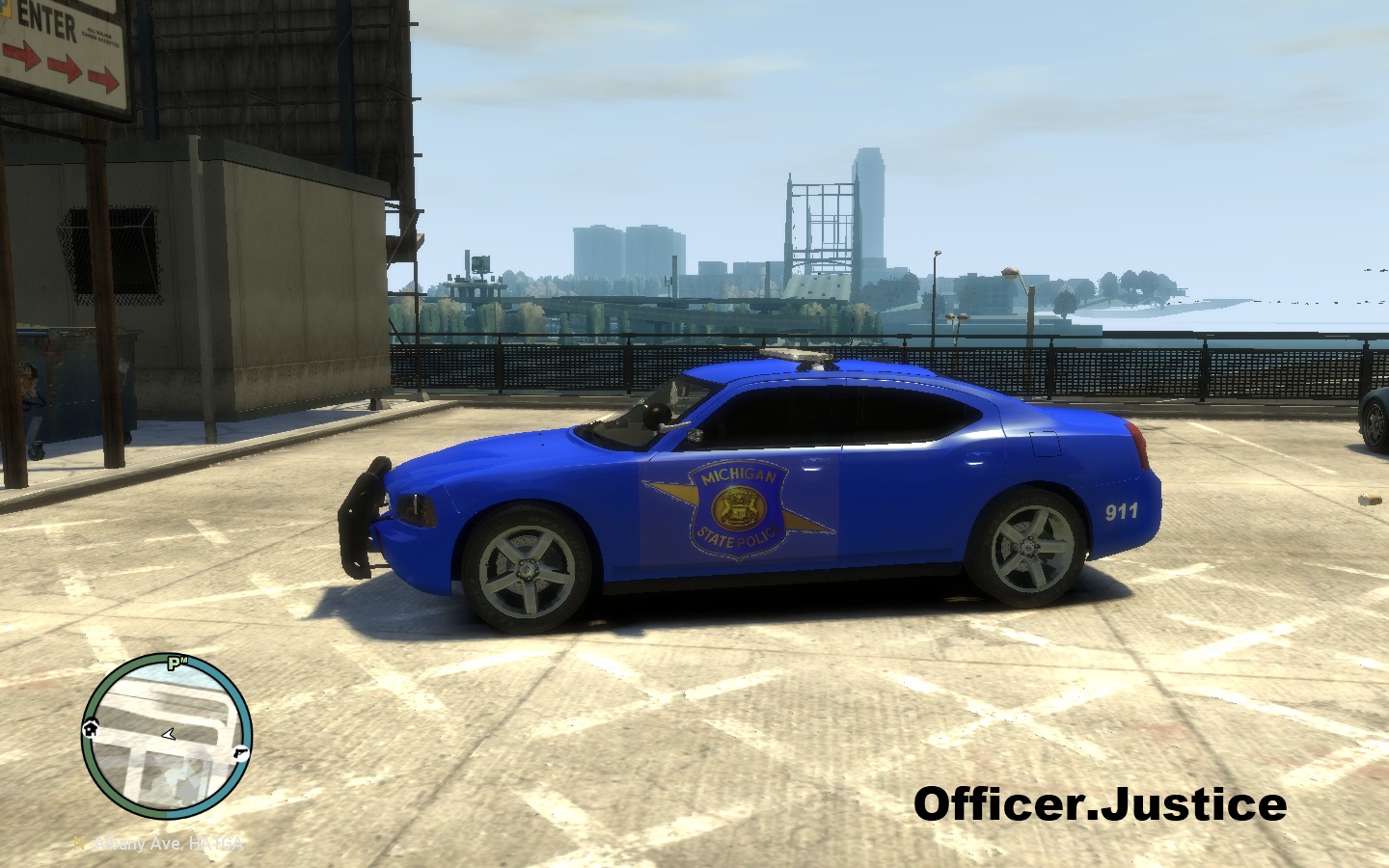
Use a lightbar that is realistic and if you are trying to make a different lightbar put more effort into it. It looks like you just chucked two justices on eachother and called it a day.

Account
Navigation
Search
Configure browser push notifications
Chrome (Android)
- Tap the lock icon next to the address bar.
- Tap Permissions → Notifications.
- Adjust your preference.
Chrome (Desktop)
- Click the padlock icon in the address bar.
- Select Site settings.
- Find Notifications and adjust your preference.
Safari (iOS 16.4+)
- Ensure the site is installed via Add to Home Screen.
- Open Settings App → Notifications.
- Find your app name and adjust your preference.
Safari (macOS)
- Go to Safari → Preferences.
- Click the Websites tab.
- Select Notifications in the sidebar.
- Find this website and adjust your preference.
Edge (Android)
- Tap the lock icon next to the address bar.
- Tap Permissions.
- Find Notifications and adjust your preference.
Edge (Desktop)
- Click the padlock icon in the address bar.
- Click Permissions for this site.
- Find Notifications and adjust your preference.
Firefox (Android)
- Go to Settings → Site permissions.
- Tap Notifications.
- Find this site in the list and adjust your preference.
Firefox (Desktop)
- Open Firefox Settings.
- Search for Notifications.
- Find this site in the list and adjust your preference.


CROATIAN POLICE [AUDI RS4]
in Vehicle Models
pa evo ti za v 2.0 ovaj auto