
Four1one
Members
-
Joined
-
Last visited
Everything posted by Four1one
-
****NOTE: Police on the side of car has been fixed. Veterans Affairs (VA) police are a U.S. government law enforcment service that patrols U.S. military hospitals and clinics. VA police use both red and blue lights. *Do not edit Texture without permission* Car Used: Tahoe- 2010 Ontario Provincial Police stleath Unit (highly recommended vehicle)
-
Liberty City University Police DEPT. textures Modles used: Tahoe: 2010 Ontario Provinicial police Stealth unit Crown Vic: Arlington County Police CVPI
-
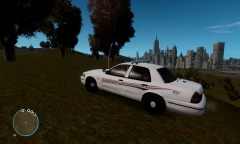 Nice sheriff cars. very realestic, you should make some of Oak Island or Southport some small town in Brunswick County
 -
New late 2012 or 2013 ford explorer new to actual NC highway patrol and older black with grey striped CVPI (still in use). (only about 10 of the explorers in NC as of 10-19-2013 mostly in mountains). Enjoy the skins.
-
Being that i live 10 minutes from UNC the cars are all wrong. In NC all state law enforcment (state university's) have all blue lights. Also Chapel Hill Fire Rescue are ran by the city and they have all carolina blue trucks. But nice try.
- 14 comments
- 11 reviews
-
-